

What Is a Trusted Address Book?
When you configure trusted addresses, you won’t need to re-enter steps like SMS verification code, email code, Google Authenticator/Gate code, or fund password during withdrawals.
Steps to Add a Whitelisted Address in the Mobile App
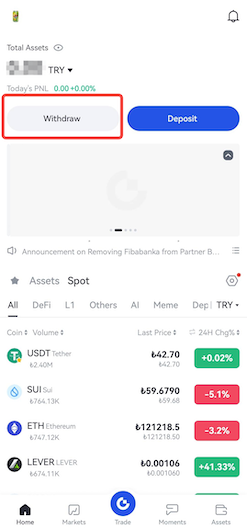
Step 1: Open the Gate TR mobile app and log in. Go to the “Assets” page and tap the “Withdraw” button.
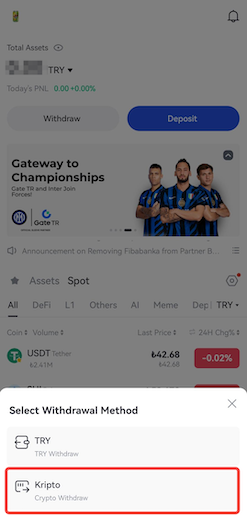
Step 2: Tap “Crypto” and select a coin.
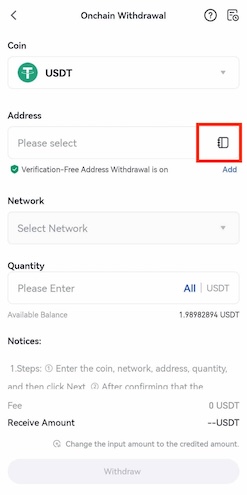
Step 3: On the next screen, tap the “Address Book” icon in the top right corner.
Step 4: On the Address Book page, tap “Add Address.”

Step 5:
- Choose the correct coin and network
- Enter the withdrawal address
- Give the address a name
- Enter the required info such as the Google Authenticator code
- Check the box for “Set as trusted address”
- Check “No need for repeated verification”
- Then tap “Confirm”

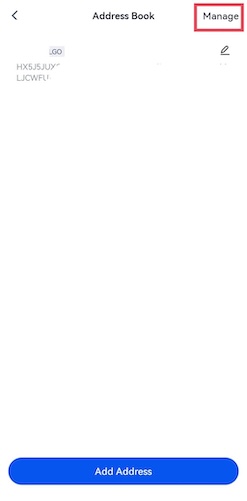
Step 6: Once added successfully, the address will appear in your address book. If you want to delete an address, tap the “Manage” button at the top right. You can add new addresses by repeating the steps above.
For any issues, feel free to contact destek@gate.com.tr. You can also use the Gate TR app: go to your profile and tap the microphone icon in the top right to reach the Help Center and speak with a support agent.
You can also submit feedback through our Suggestions & Feedback page to win rewards!
