

Your phone number is crucial for logging into your Gate TR account. Verification SMS messages are sent to the number you set. In this guide, you’ll learn step by step how to add a phone number from scratch, remove an existing phone number from your account, and reset it if needed.
Adding a Phone Number
Via Website
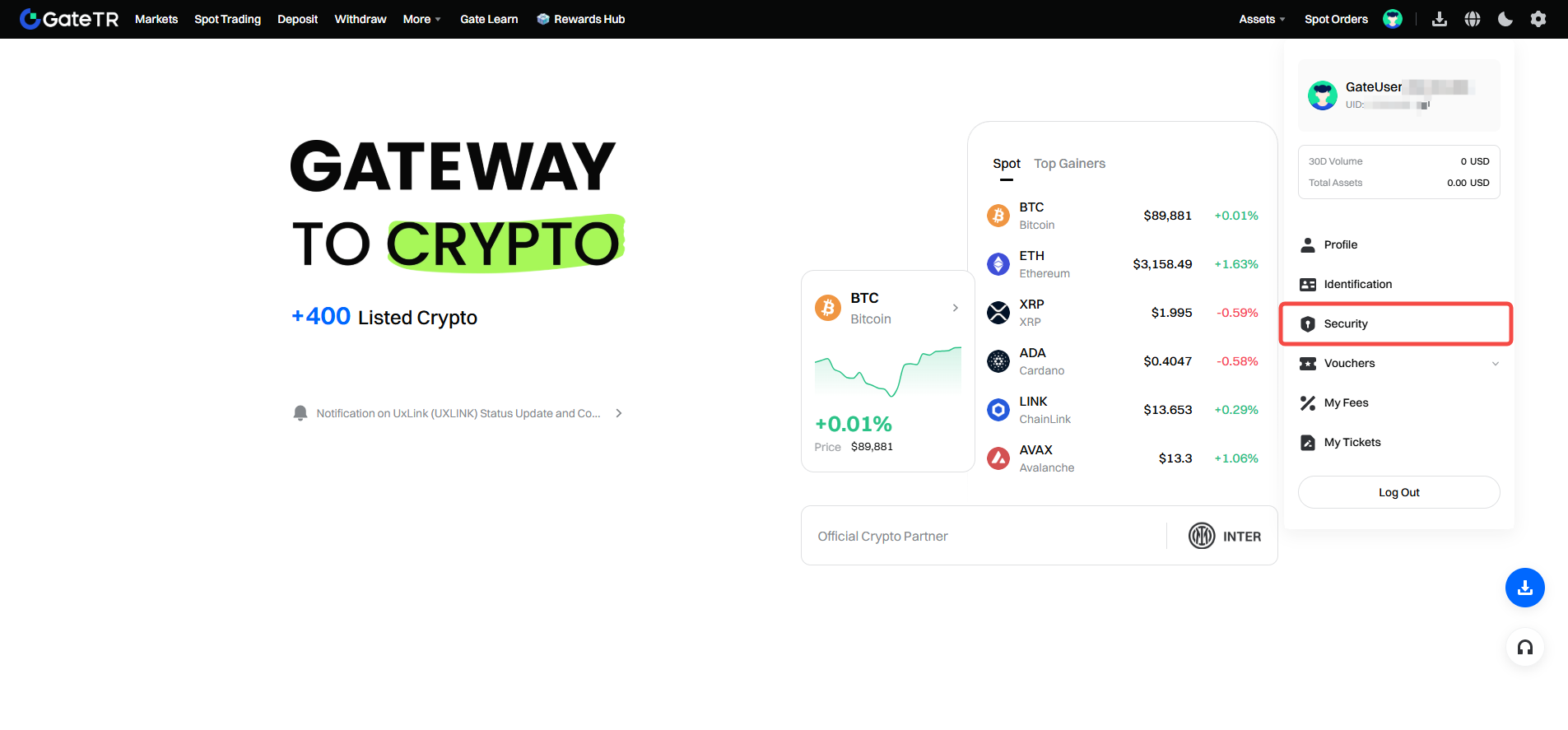
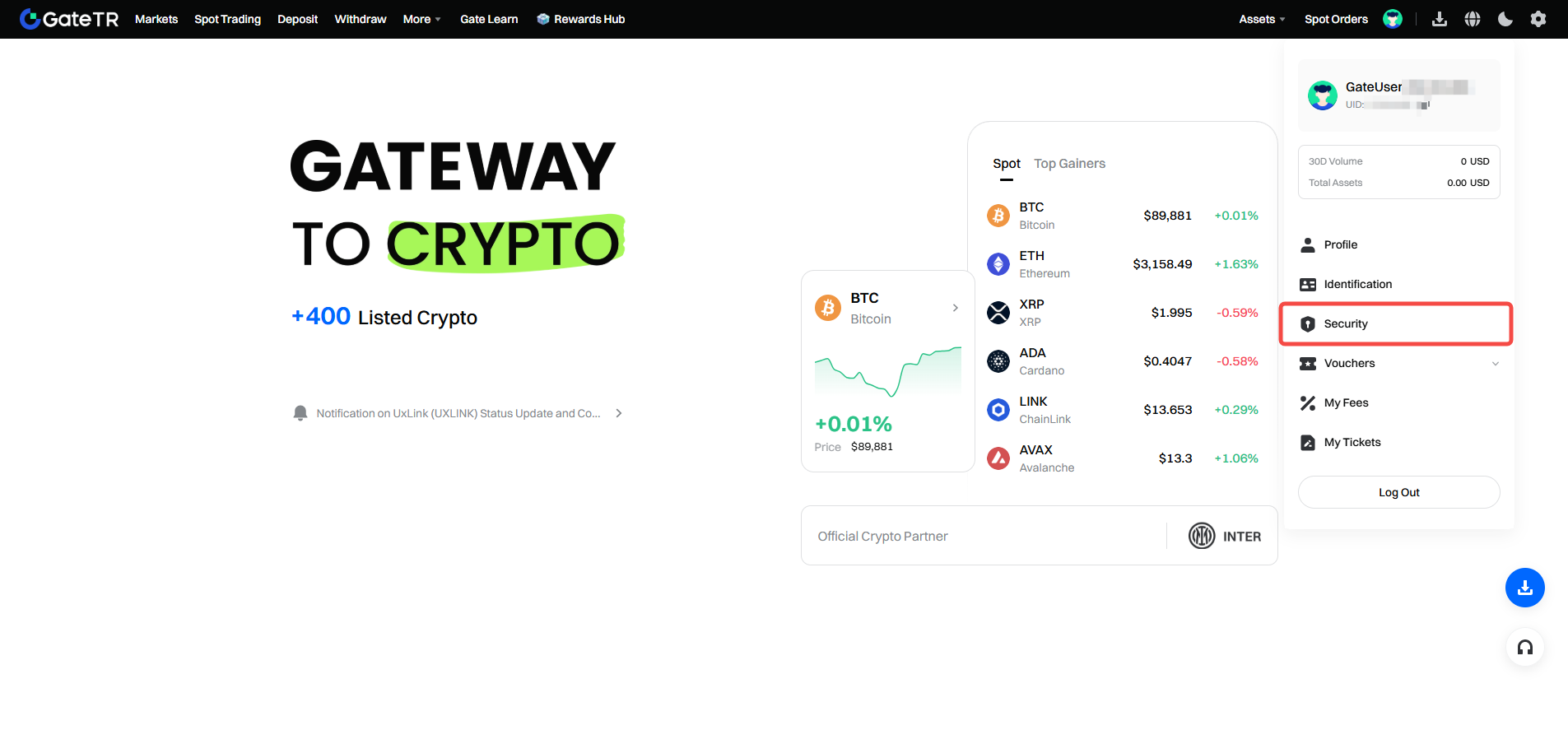
Step 1: Log into your account on the website and click the profile icon at the top right. Then, click on Security Settings.
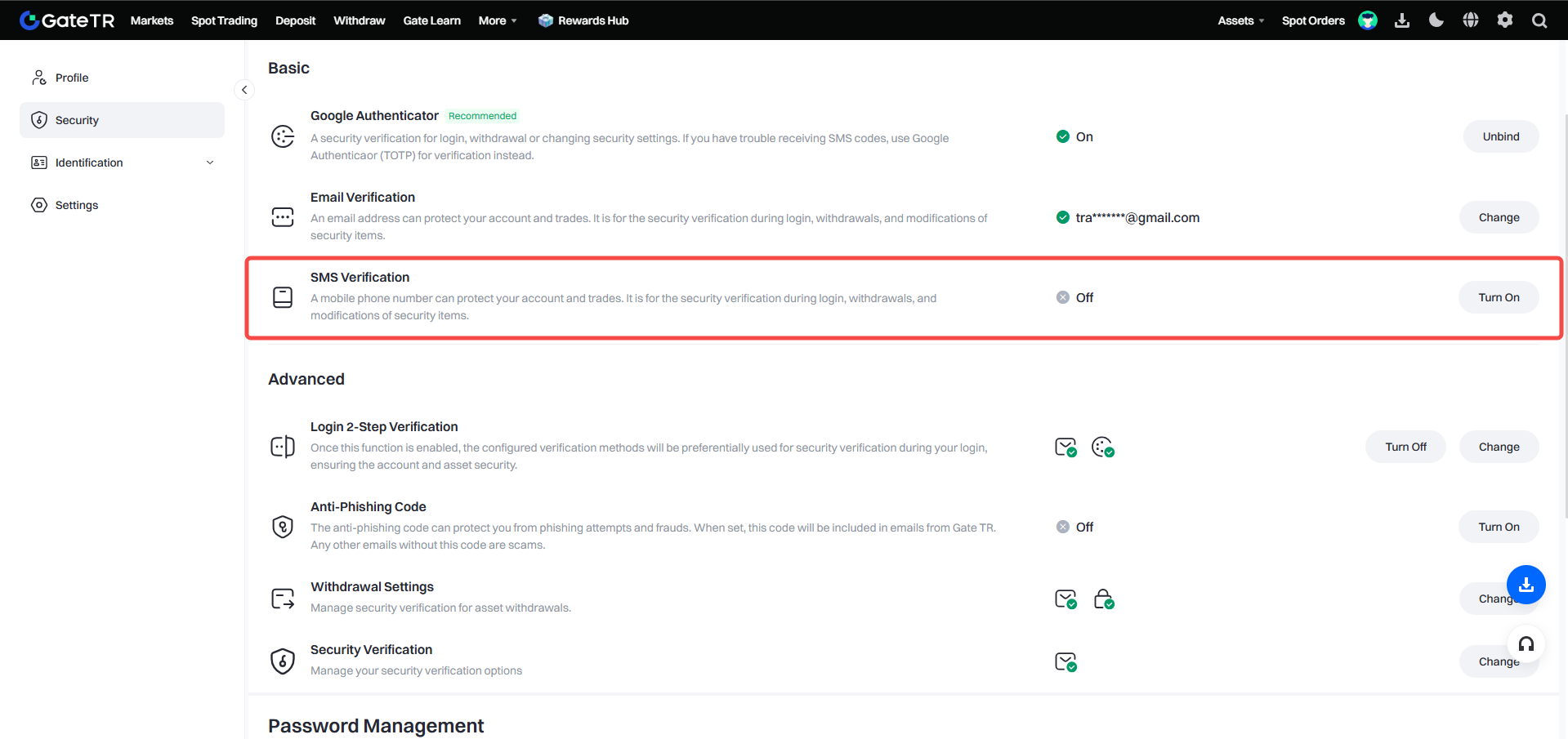
Step 2: Under the Basic Security Settings tab, find the SMS Verification section and click the Enable button.
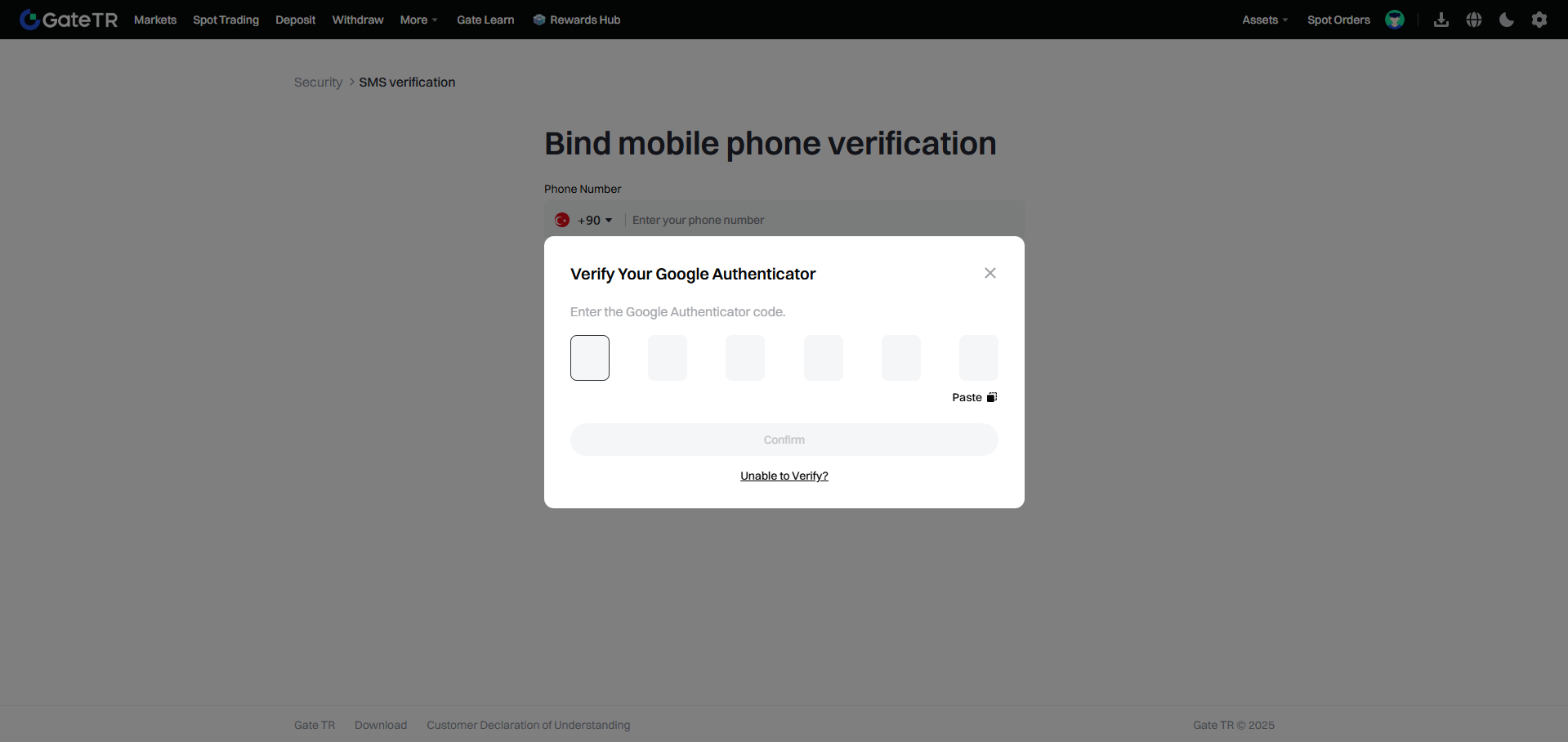
Step 3: After completing Google Authenticator verification, enter the required information and click the ‘Send SMS or Send’ button for SMS verification. Enter the SMS code received on your phone in the relevant field and click the confirm button.
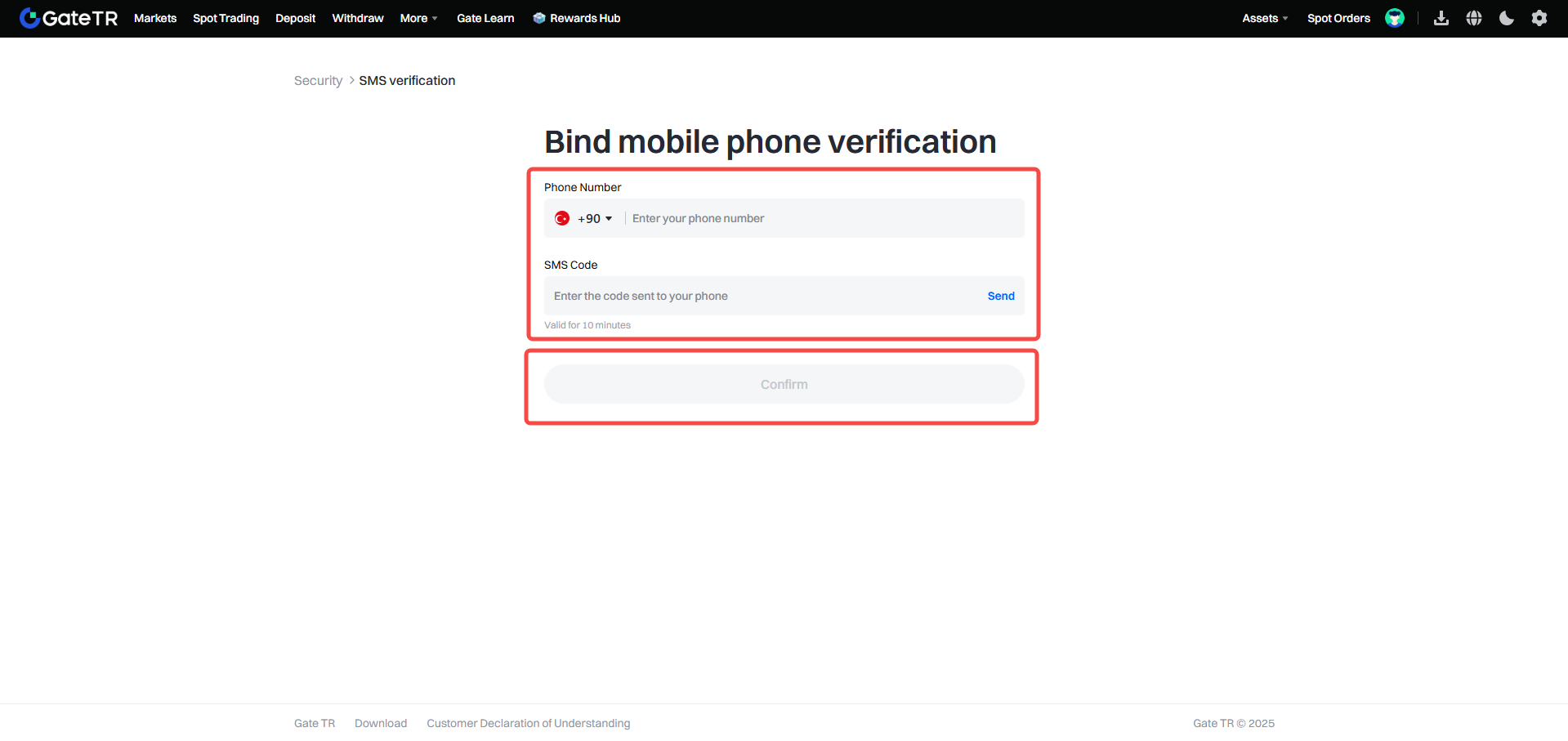
That’s it—your phone number is now linked to your account.
Via App
Step 1: After logging into the app, tap the profile icon in the top left.
Step 2: Tap the Security tab.
Step 3: Under Verification Methods, tap Phone Number.
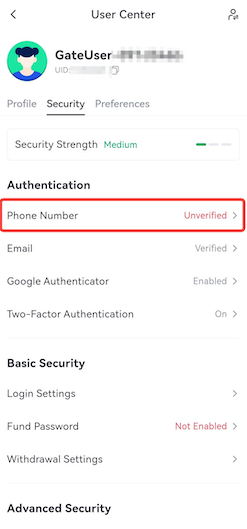
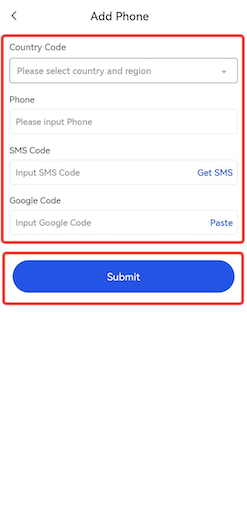
Step 4: Select your country code, enter your phone number, input the SMS and Google Authenticator codes, and tap Send.
Removing a Phone Number
If you want to remove your current phone number and add a new one, follow these steps:
Via Website
Step 1: Log into your account and click the profile icon in the top right.
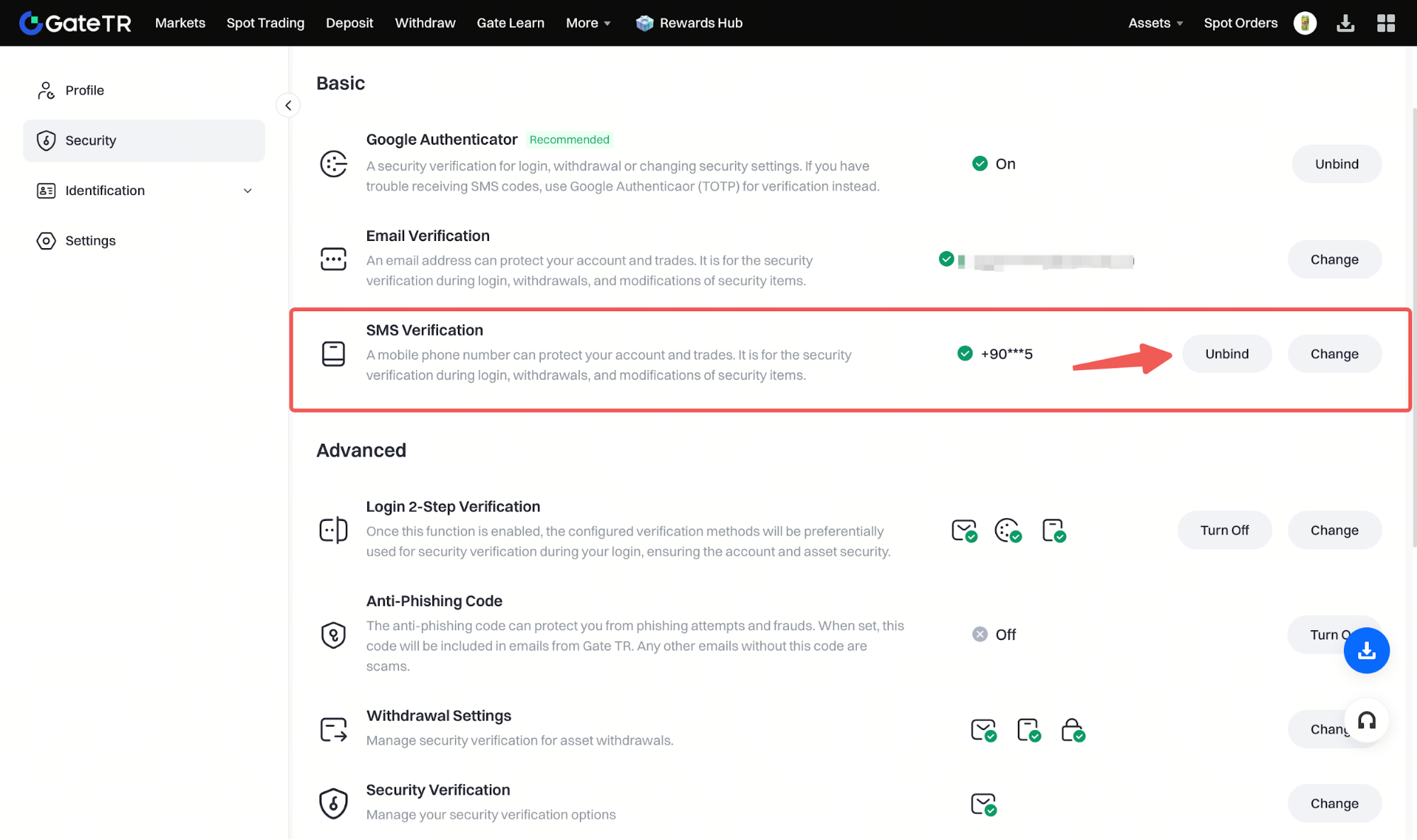
Step 2: Select Security Settings and then click on SMS Verification.
Step 3: Click Unlink or Change depending on your need.
Steps to follow when you click the Remove Link button:
- Click the Unbind button in the SMS Verification section.
- Click on Go to Disable in the window that opens.
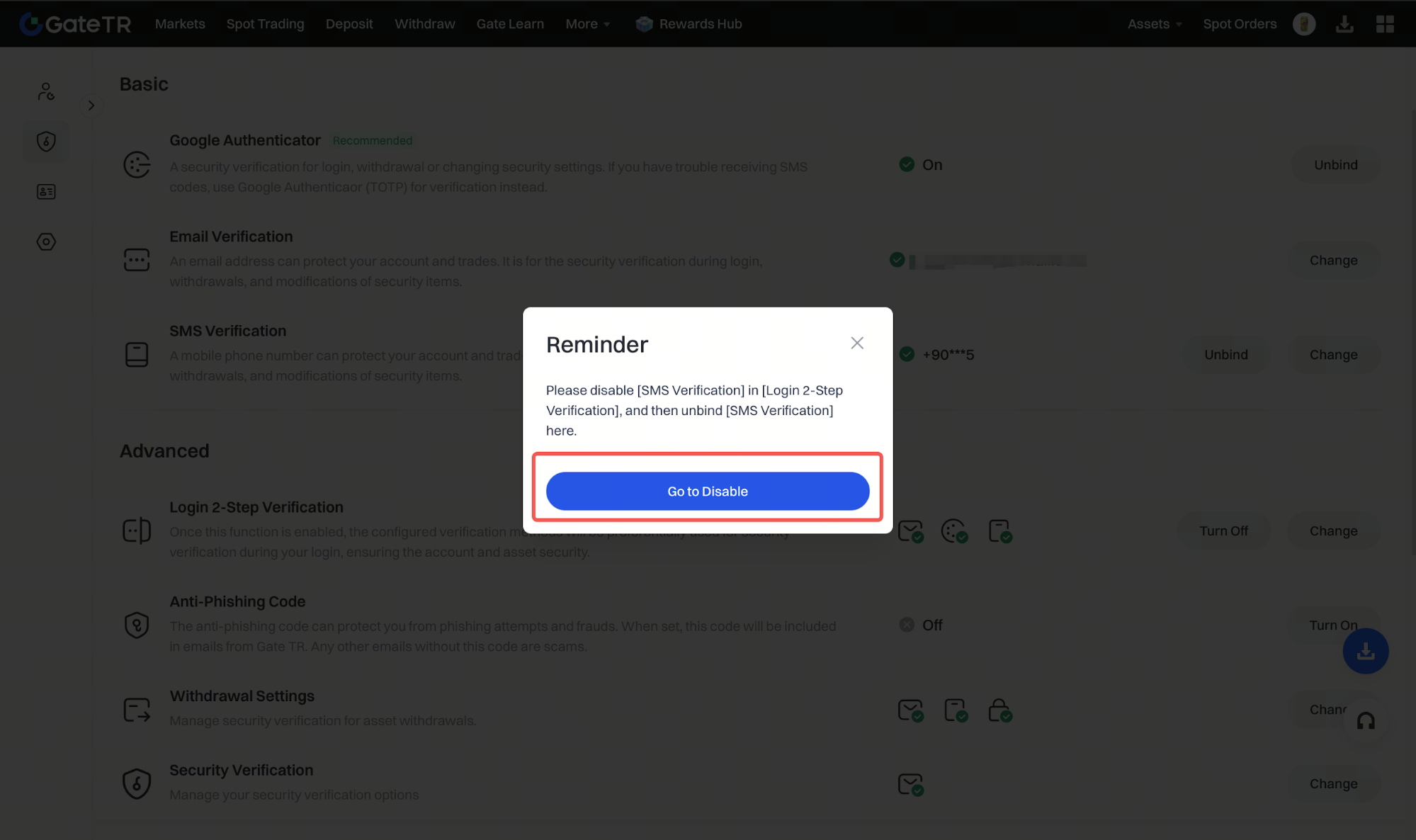
3. Then click on SMS Verification in the window that opens.
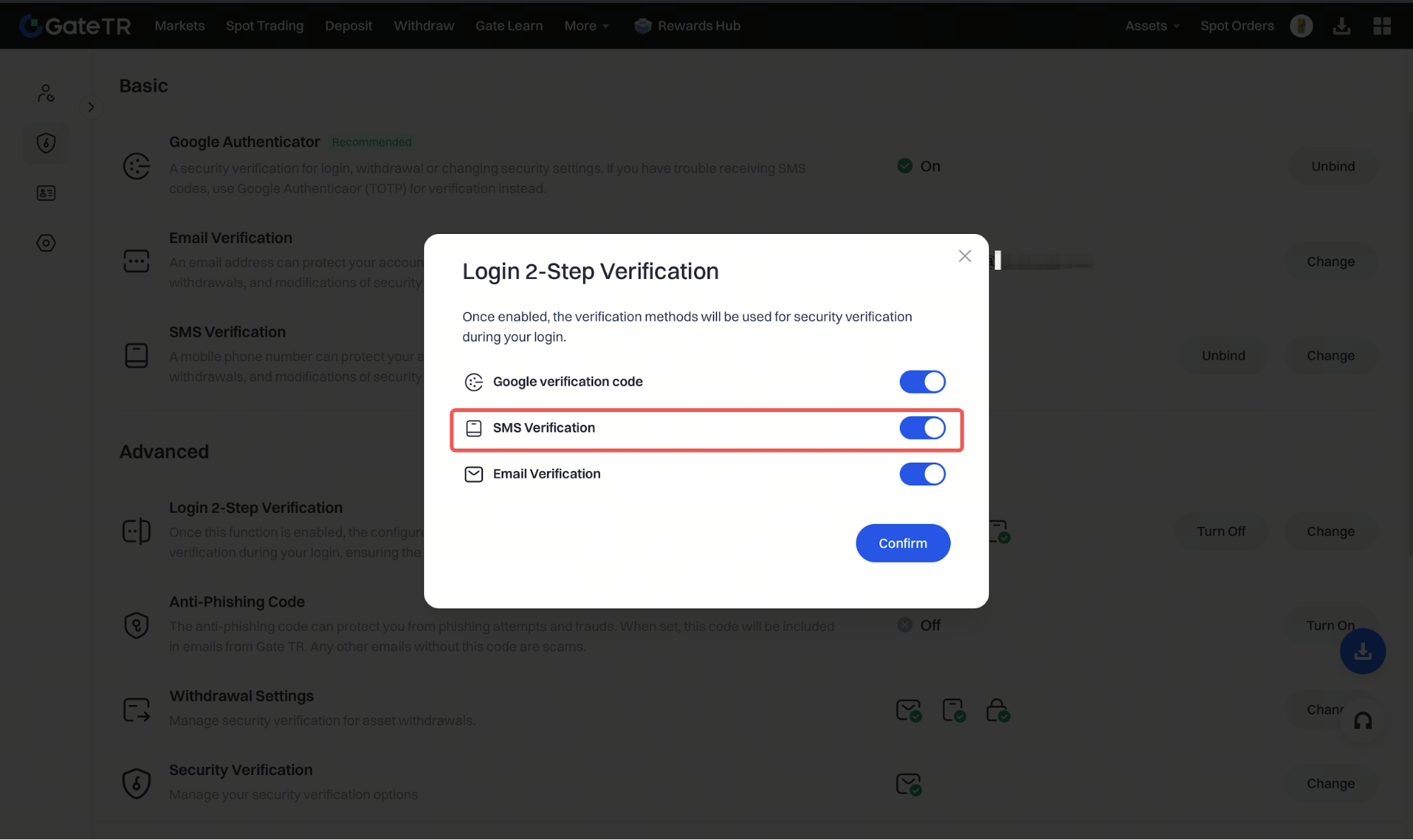
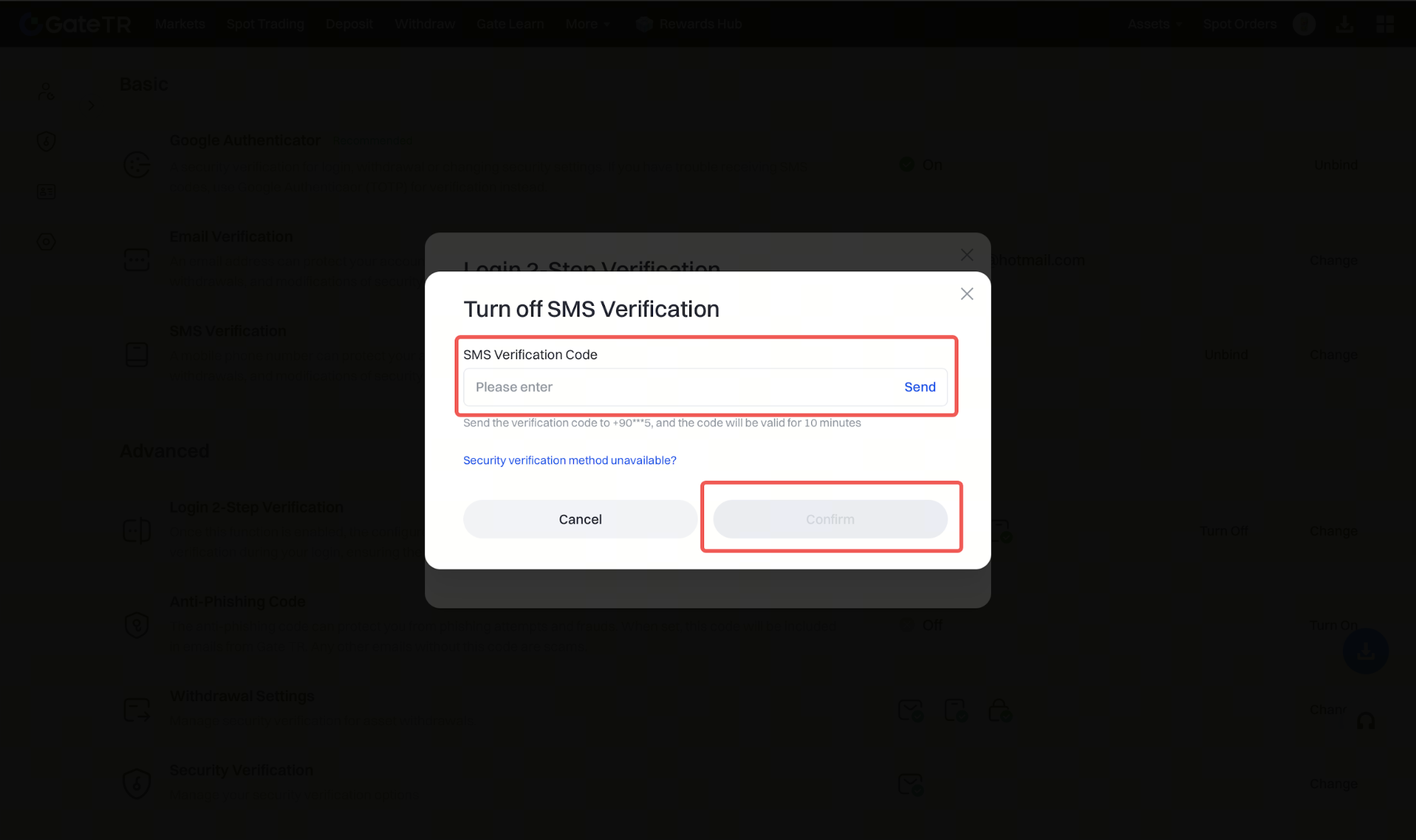
- Then click Send to have a verification code sent to the phone number registered to your account, enter the code, and click the Confirm button to remove the link to your phone number.
The steps you need to follow when you click the Change button are as follows:
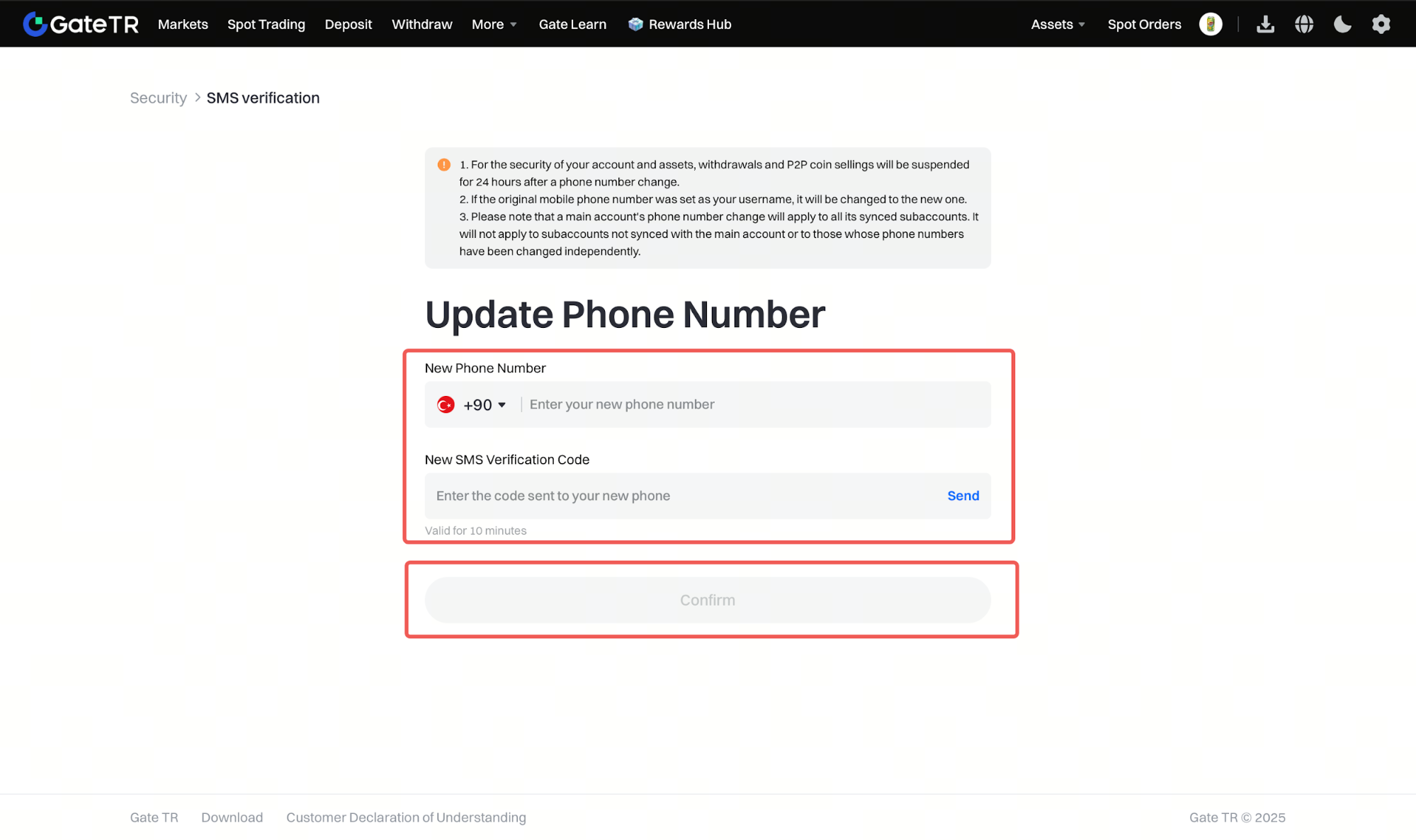
- Click the Change button in the SMS Verification section.
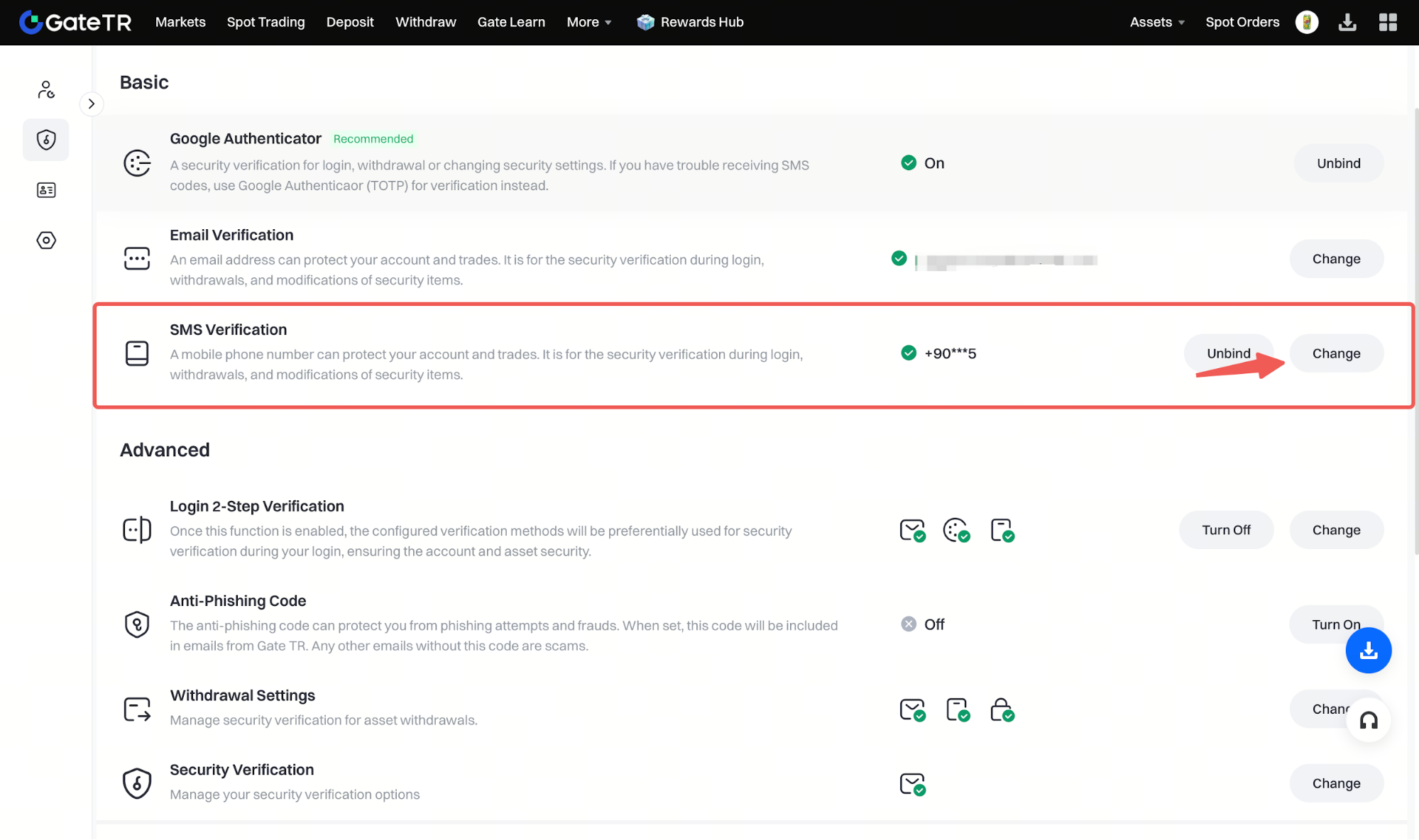
- On the page that opens, enter the phone number you wish to update, then click the Send button and send a verification code. Enter the verification code sent to the phone number you wish to update and click the Confirm button to update your phone number.
Via App
Step 1: Open the Gate TR app and tap the profile icon in the top left.
Step 2: On the new page, tap your profile photo again, then select Security.
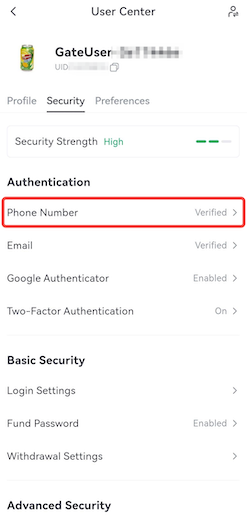
Step 3: Under Verification Methods, tap Phone Number, and choose to unlink it.
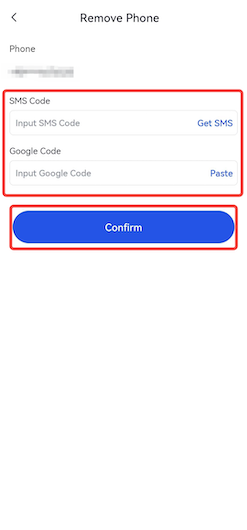
Step 4: Enter the SMS verification and Google Authenticator codes, then tap Confirm. Your number will be unlinked from your account.
Resetting a Phone Number
If you can’t access your phone (e.g., lost or stolen), follow these steps to reset it:
On a piece of paper, write:
- Your Gate TR username, UID number, and email address
- Your full name (as in your ID)
- The city where you’re registered
- Recent transaction details (just what you can recall)
- A summary of your issue with the current date
Sample:
Hello, my name is Satoshi Nakamoto. Today is May 5, 2025. I am the owner of the Gate TR account with UID 00000000. My email address is
satoshi1997@gmail.com
. My most recent transaction was a Kapsa token purchase.
I no longer have access to my phone number +90 500 00 00. I cannot receive SMS verification codes. I kindly request your help to reset the phone number linked to my account.
Regards
Take a clear photo holding:
- The handwritten note in one hand
- The front side of your ID in the other
- Ensure your face, the note, and the ID are clearly visible and readable in the same frame
For any issue, don’t hesitate to email destek@gate.com.tr or use the app’s Help Center by tapping the microphone emoji in the profile section. You can also earn rewards by submitting feedback through our Suggestions & Feedback page.
