

If you want to change your login password or you’ve forgotten it, follow the steps below. For security reasons, you will not be able to withdraw funds or trade for 24 hours after resetting your password.
Changing Login Password via Website
Step 1: If you remember your current password, log in to your account.
Step 2: Click the profile icon at the top right, then select Security Settings.

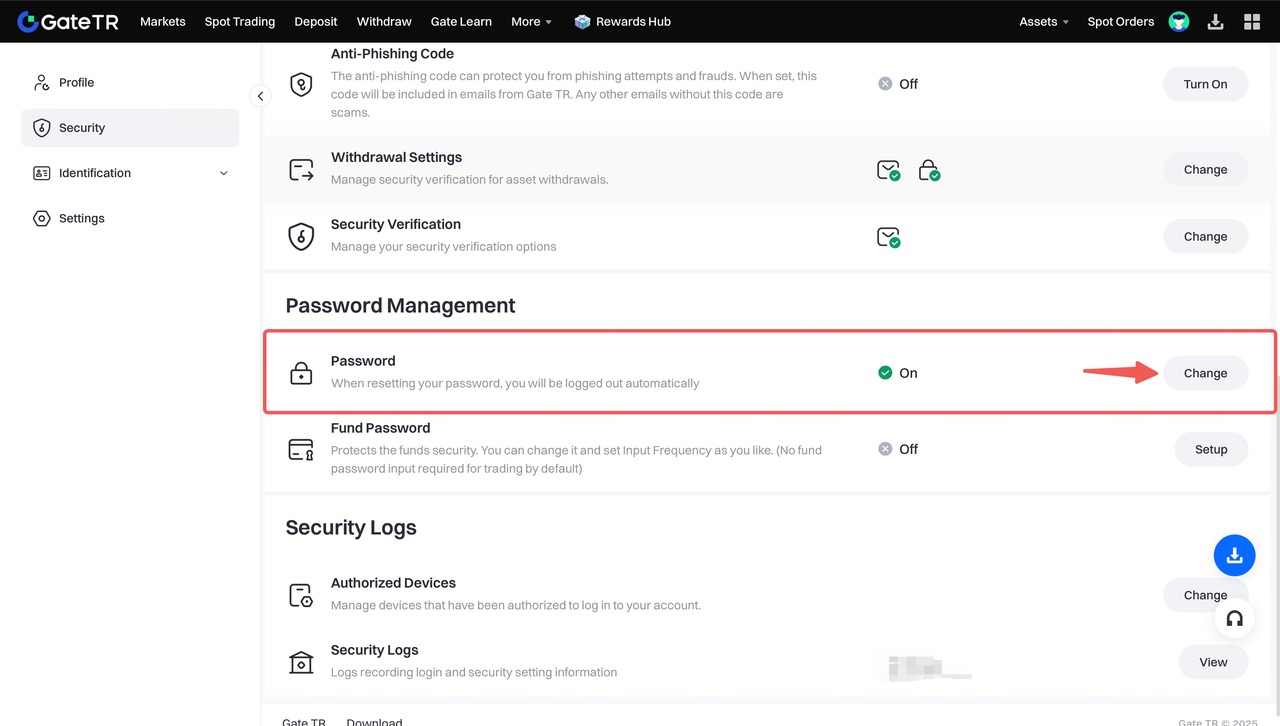
Step 3: On the screen that opens, go to the Password section under Password Management and click Change.
Step 4: Enter your old password, new password (twice to confirm), and Google verification code. Then click Confirm. Your password will be successfully changed.
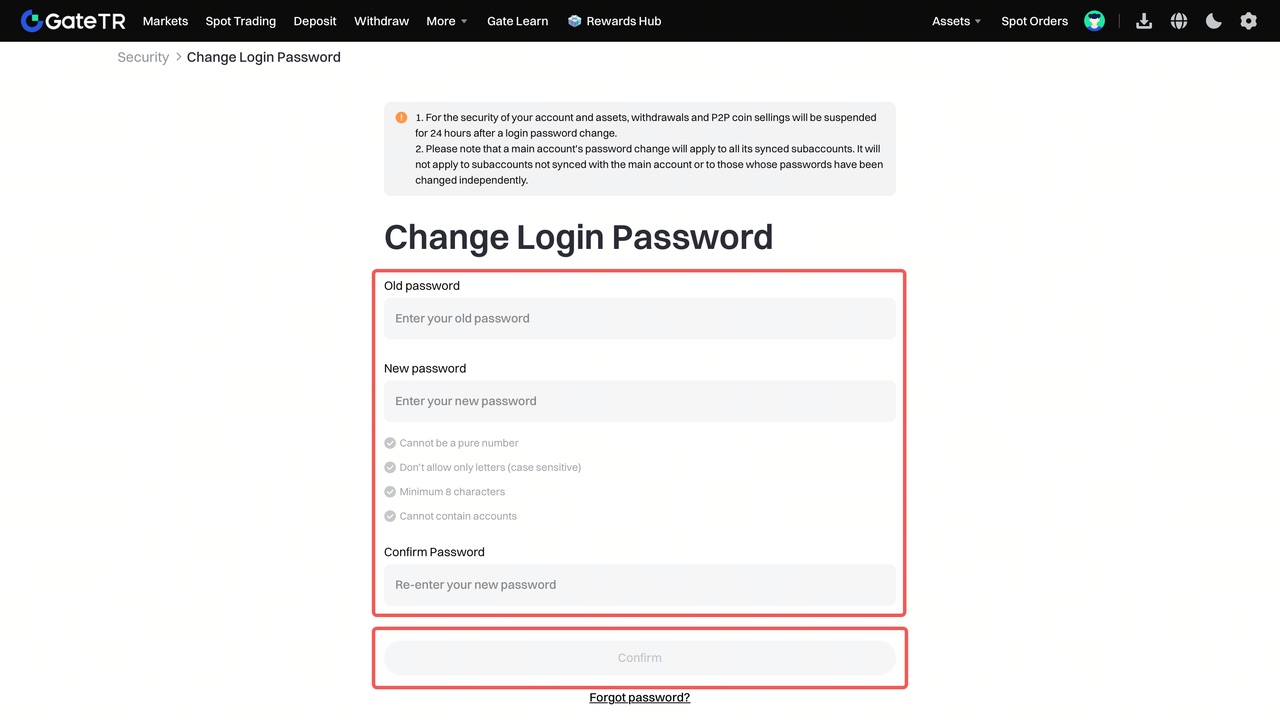
Tip: Avoid using simple and easily guessable passwords like “123456” or “password.” A strong password should include letters, numbers, and special characters, and be at least 8 characters long.
Changing Login Password via App
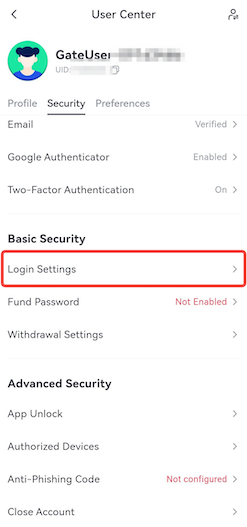
Step 1: Open the Gate TR mobile app and log in. Tap the profile icon in the top left, go to the Security tab, and open the Login Settings page.
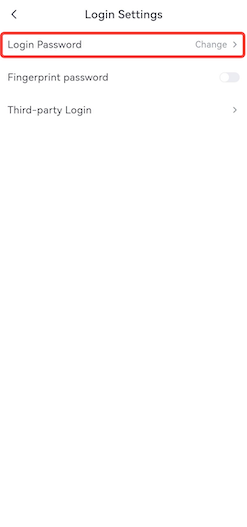
Step 2: Tap the Login Password section and change your password.
Forgot Your Password?
If you’ve forgotten your login password, follow these steps:
Step 1: On the login page, click “Forgot your password?”
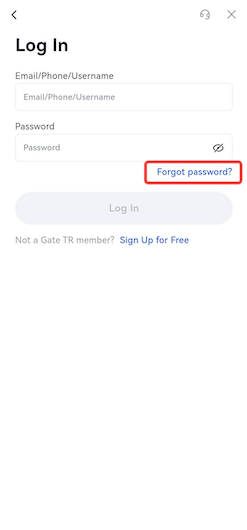
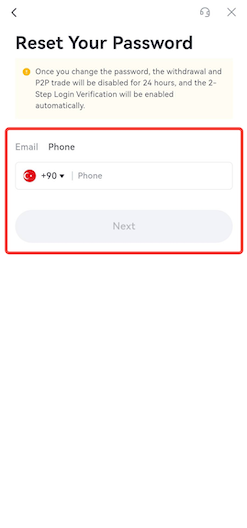
Step 2: Choose to reset your password via email or phone number, then follow the instructions to complete the reset.
Steps to follow for resetting via email:
- Enter your email address and click the Next button.
-
Enter the verification code sent to your email and click the Confirm button.
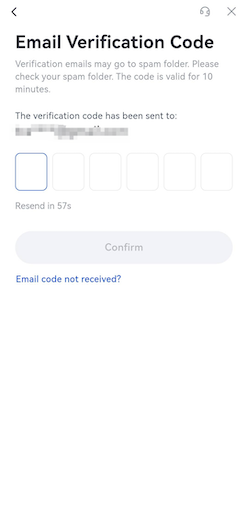
Steps to follow to reset via telephone: -
Enter the telephone number registered to your account and click the Next button.
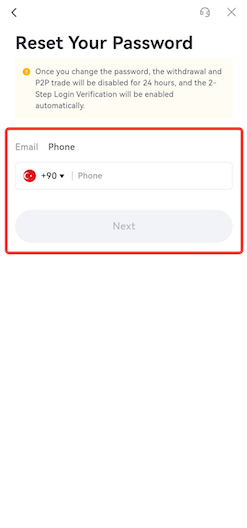
- Enter the verification code sent to your phone number and click the Confirm button.
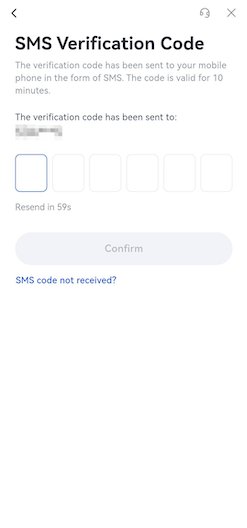
After clicking the Confirm button, your reset will be successfully completed.
Important Reminders:
- You cannot trade or withdraw funds for 24 hours after resetting your password.
- Do not use simple passwords like “123456” or “password.” Use a combination of letters, numbers, and special characters, and make sure it’s at least 8 characters long.
- After resetting your login password, you will be automatically logged out. You will need to log in again using your new password.
For any issues, feel free to contact destek@gate.com.tr. You can also use the Gate TR app: go to your profile and tap the microphone icon in the top right to reach the Help Center and speak with a support agent.
You can also submit feedback through our Suggestions & Feedback page to win rewards!
