

Using authenticator apps is crucial for securing your Gate TR account. You can link your account with the Google Authenticator app. This guide explains how to link, remove, and reset Google Authenticator for your Gate TR account.
For a step-by-step setup tutorial, you can watch the following video:
Linking Google Authenticator
Step 1: Download the Google Authenticator app from your device’s app store and log in with your Google account.
Step 2: In the Gate TR app, tap the profile icon at the top left. Go to the Security tab and select the Google Authenticator option.
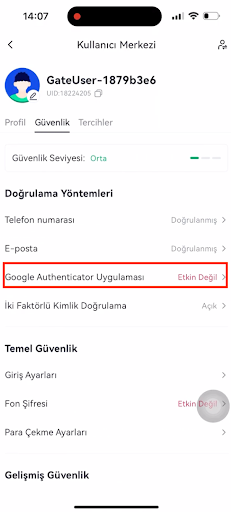
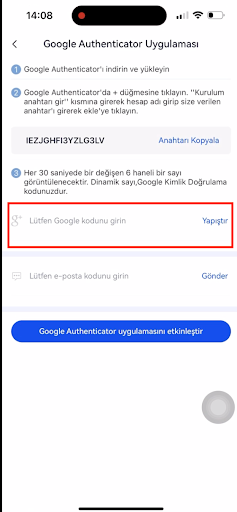
Step 3: On the screen that opens, your setup key will be displayed. Tap Copy Key.
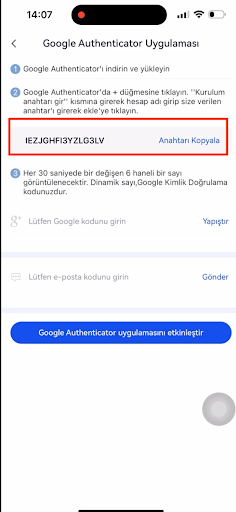
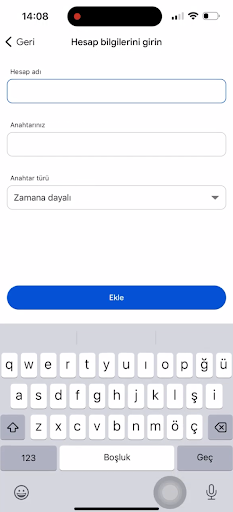
Step 4: Open the Google Authenticator app again, tap the + button at the bottom right, then select Enter a setup key.

Step 5: Paste the copied key from Gate TR. Give it a name and choose Time-based as the key type.
Step 6: Your Google Authenticator code is now created. It changes every 30 seconds. Tap the code to copy it.
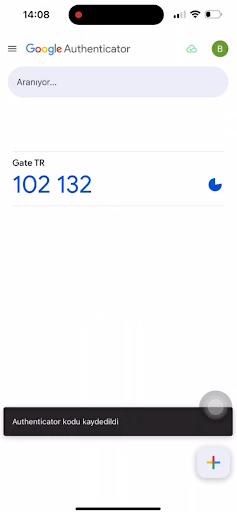
Step 7: Return to the Gate TR app, paste the copied code into the marked field, and enter your email or SMS verification code. Tap Activate to complete the setup.
Tip: If you get an “invalid code” warning or feel time is too short, first paste the email/SMS code, then get your Authenticator code and paste it. Since email/SMS codes are valid longer, you’ll have time to complete the process before the Authenticator code expires.
Removing Authenticator
If you are receiving Google Authenticator codes without any issues, log in and go to the Security Center in the Gate TR app or website. Select Disconnect Authenticator, fill in the required info, and confirm to remove it.
Önemli Uyarı: Authenticator Kodunu Yeni Cihaza Aktarmadan Eski Cihazınızı Sıfırlamayın
Do not reset your old device without transferring Authenticator codes to your new one. Authenticator apps are device-specific.
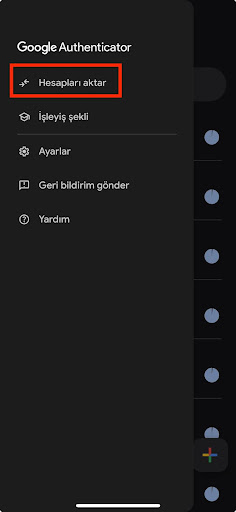
- Tap the three lines at the top left of the Google Authenticator app
- Go to Export Accounts
- Follow the steps to transfer to your new device
Resetting Authenticator If You Can’t Access Verification Codes
If you’ve lost access to your phone or reset it without transferring Authenticator codes, follow these steps:
Write the following info on a piece of paper:
- Gate TR username, UID number, email address
- Full name as on your ID
- City of registration
- Recent activity details (share as much as you remember)
- A brief explanation of your issue with the current date
Example:
Hello, my name is Satoshi Nakamoto. Today is May 5, 2025. I am the owner of the Gate TR account with UID 00000000. My email address is satoshi1997@gmail.com. My last transaction on Gate TR was buying Kapsa token.
I would like to request a reset of my Google Authenticator verification.
Best regards
Take a clear photo of yourself holding:
- The handwritten note in one hand
- The front of your ID in the other
- Your face, the note, and the ID must all be clearly visible in one photo
Send the photo along with any additional information to destek@gate.com.tr. Updates regarding your account will be sent via your email.
For any issues, feel free to contact destek@gate.com.tr. You can also use the Gate TR app: go to your profile and tap the microphone icon in the top right to reach the Help Center and speak with a support agent.
You can also submit feedback through our Suggestions & Feedback page to win rewards!
