

How to Set Fund Password Entry Frequency?
The fund password is one of the most important security credentials for protecting your assets on Gate TR. Even if your account is compromised, your assets will remain safe (as long as the fund password is enabled in the withdrawal settings). It’s crucial not to share your fund password with anyone or store it digitally. Also, changing it periodically will enhance your security.
Gate TR offers a security feature that requires you to re-enter your fund password at specified intervals. In this guide, we will walk you through how to enable or disable the fund password entry frequency step by step.
Setting Fund Password Entry Frequency via Web
Let’s first see how to adjust the fund password entry frequency on our website:
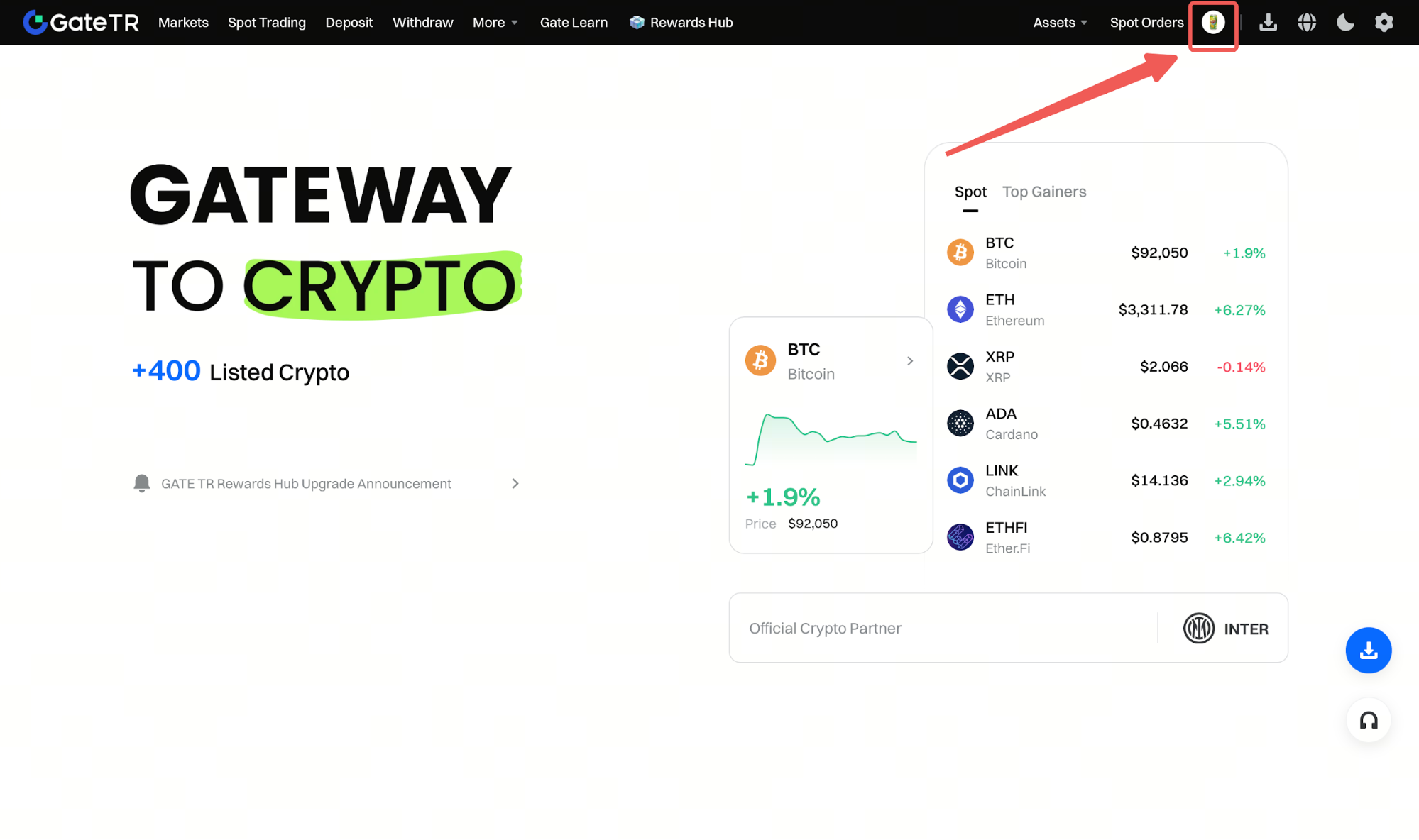
Step 1: Click the profile icon in the top right corner of our website.
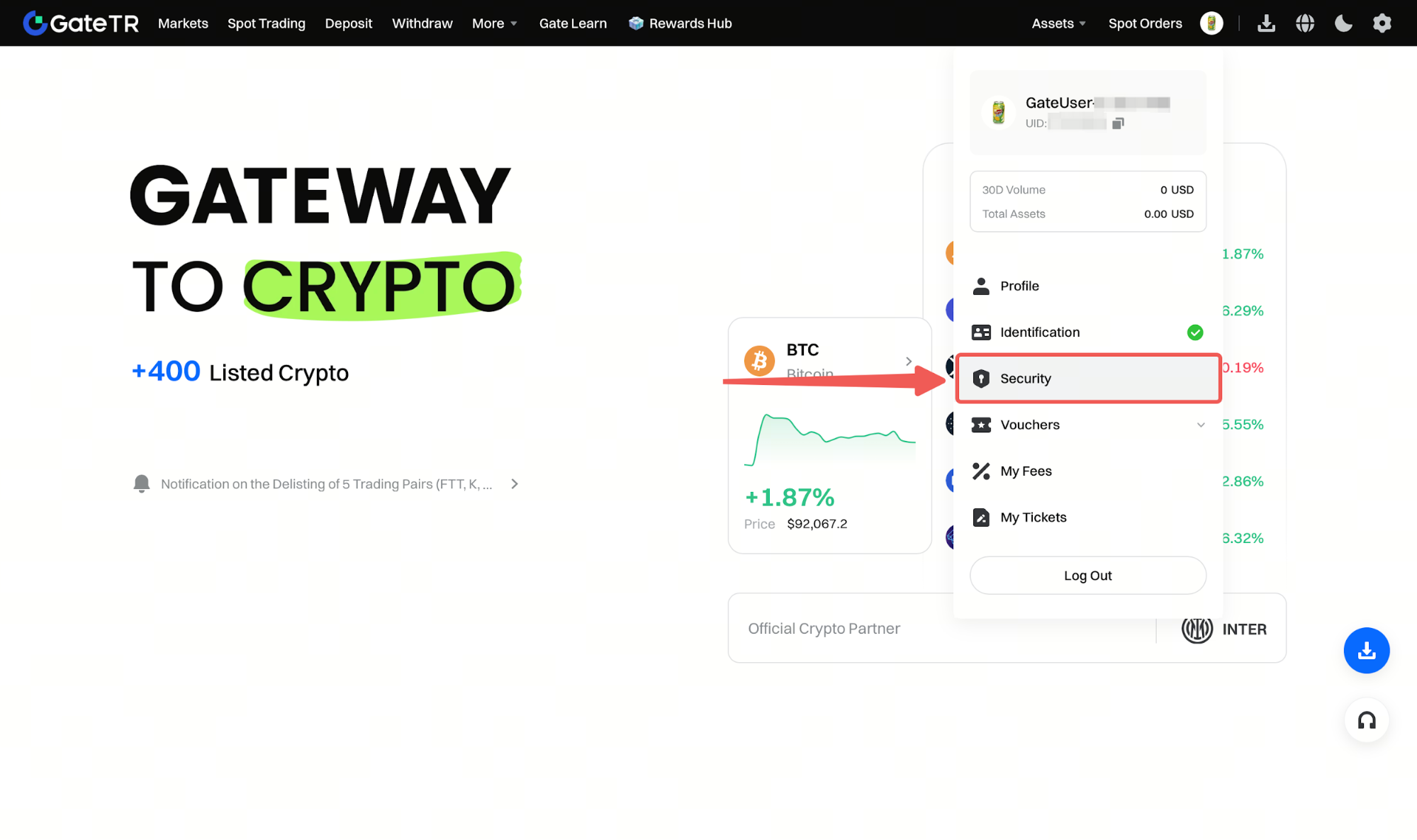
Step 2: On the screen that opens, click on the “Security Settings” section.
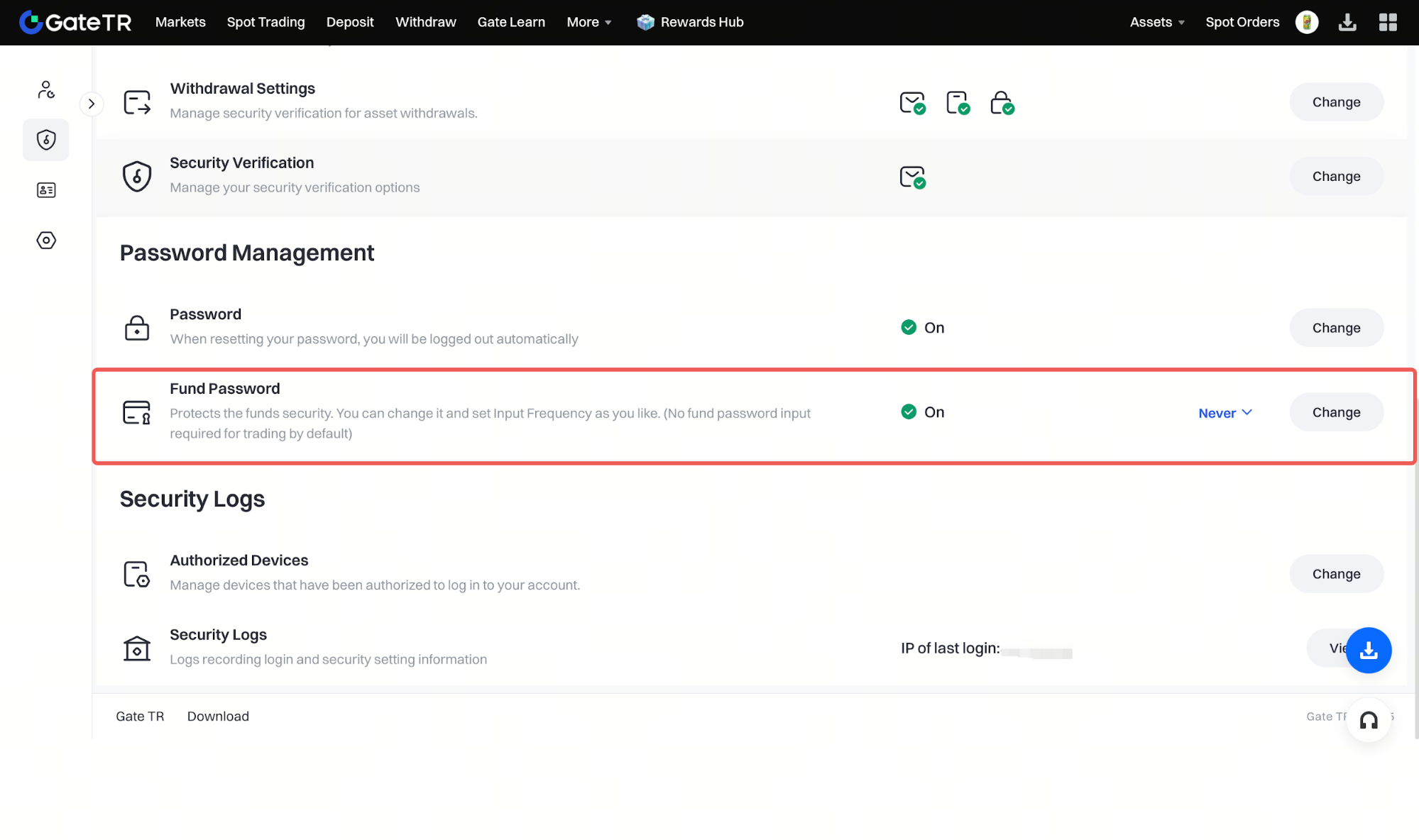
Step 3: Scroll down a bit and find the Fund Password section under the Password Management heading.
Step 4: Click the marked area in the screenshot below to see the options for setting the fund password entry frequency.
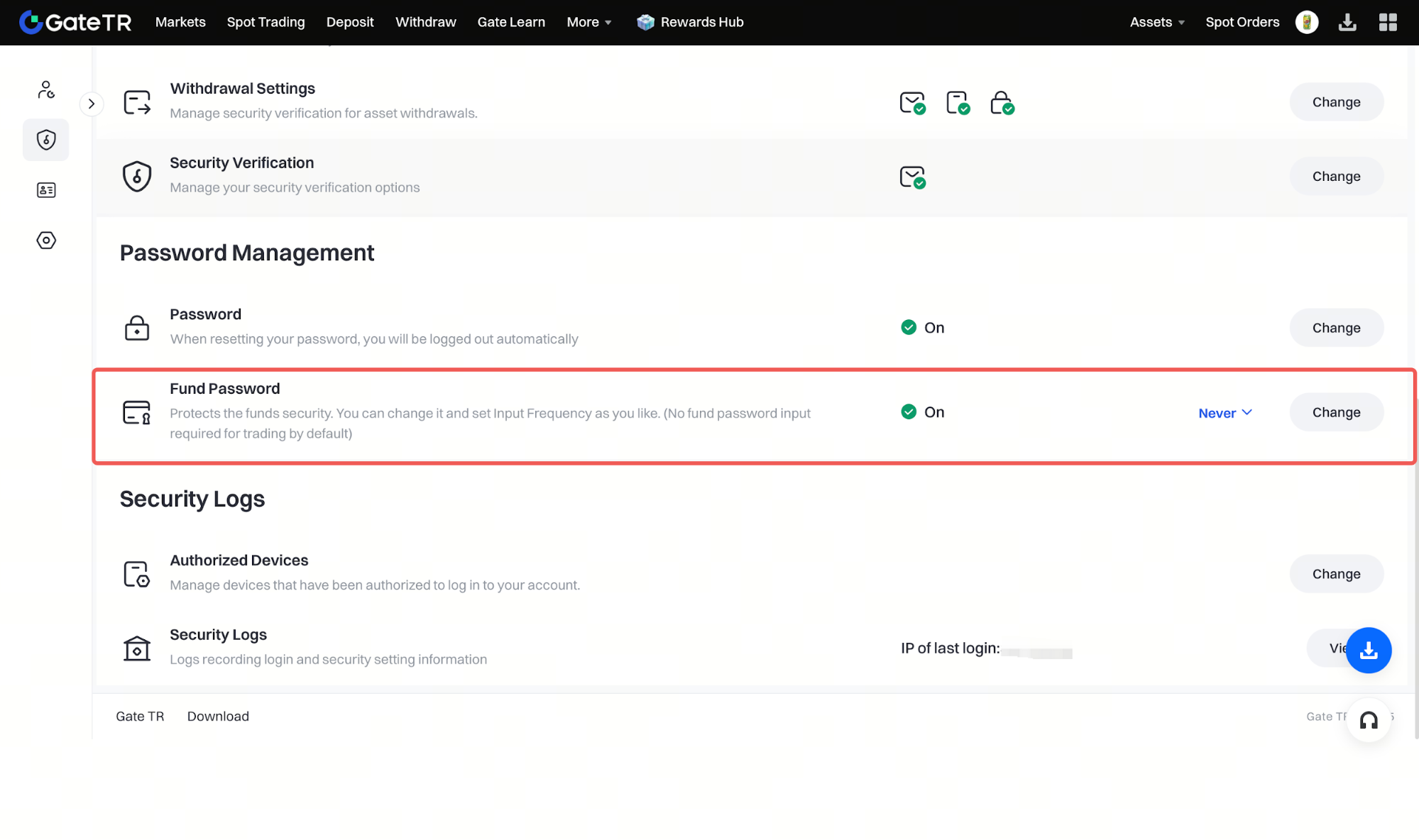
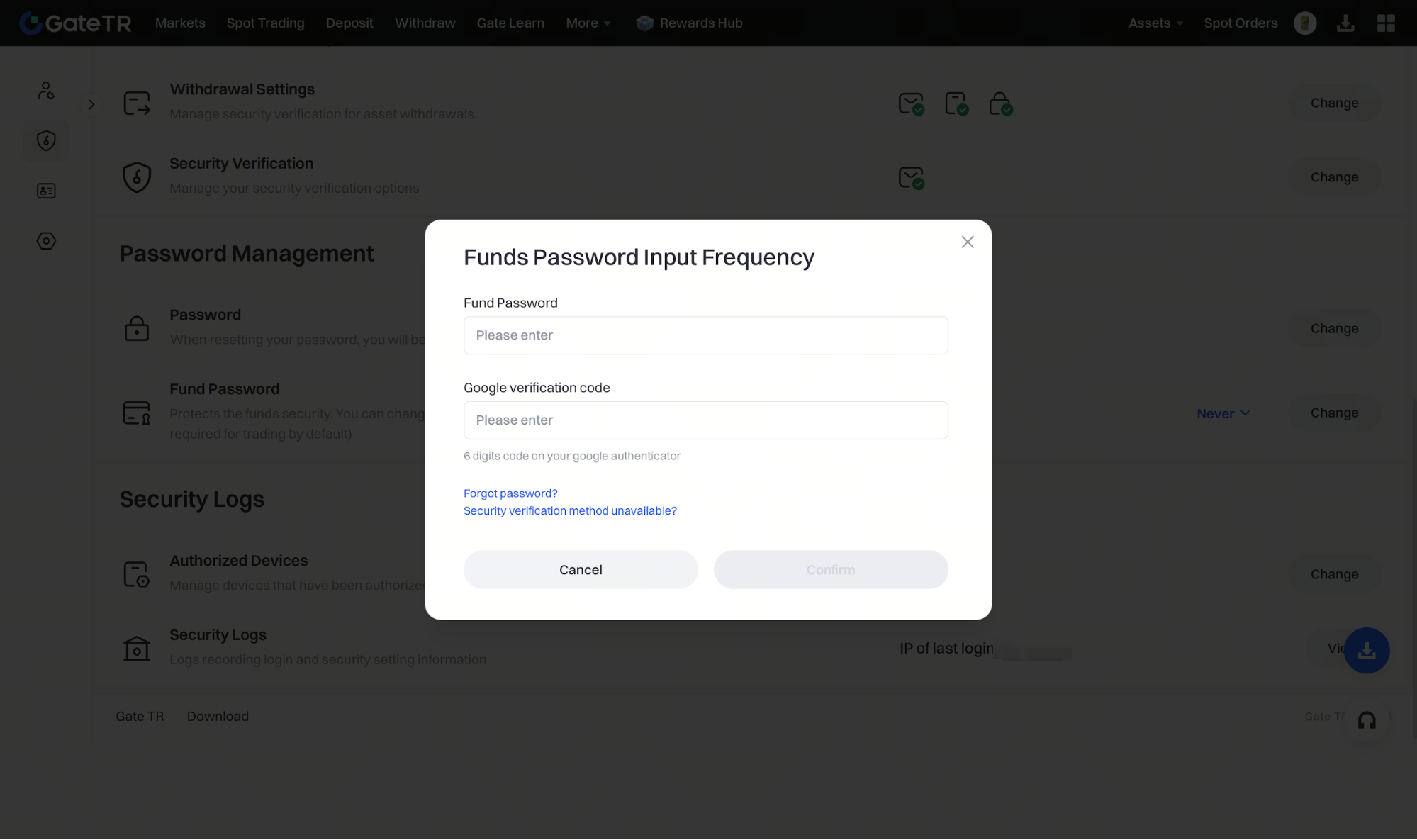
Step 5: To successfully change your chosen frequency, you’ll need to enter your fund password and Google verification code. After clicking the Confirm button, your fund password entry frequency will be successfully updated.
Setting Fund Password Entry Frequency via the App
Now, let’s take a look at how to adjust the fund password entry frequency via the mobile app:
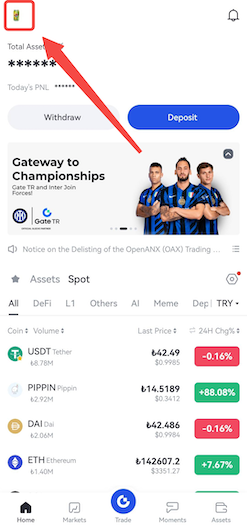
Step 2: Tap the area marked in red below.
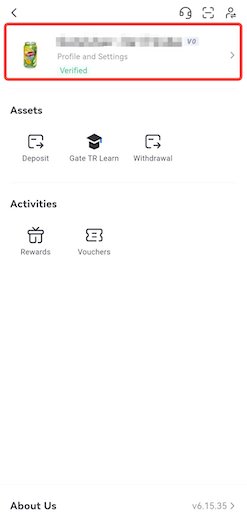
Step 3: From the screen that opens, go to the Security tab.
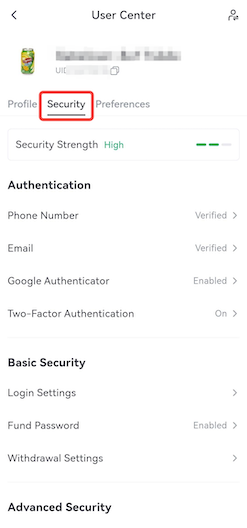
Step 4: Scroll down a bit and tap the Fund Password page under the Basic Security section.
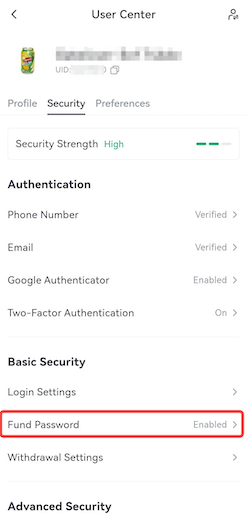
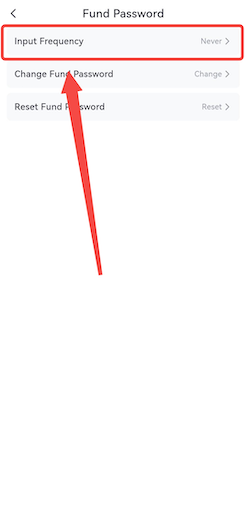
Step 5: On the Fund Password Settings page, tap the Entry Frequency option to set your desired frequency. To finalize your changes, enter your fund password and Google verification code. After clicking the Confirm button, your settings will be successfully updated.
If you encounter any issues, don’t hesitate to email us at destek@gate.com.tr. You can also click the profile section in the top left of the Gate TR app, then tap the microphone emoji in the top right of the opened page to connect with a customer support agent via the Help Center.
Additionally, you can submit feedback through our Suggestions & Feedback page and earn rewards!
