

Two-Factor Authentication (2FA) adds an extra layer of security when logging into your account. Before enabling 2FA, make sure that at least two of the following are linked to your account: phone number, Google/Gate Authenticator, or email address.
Once 2FA is enabled, anyone trying to access your account must enter a verification code. This significantly enhances your account’s security.
How to Enable 2FA on Gate TR Website?
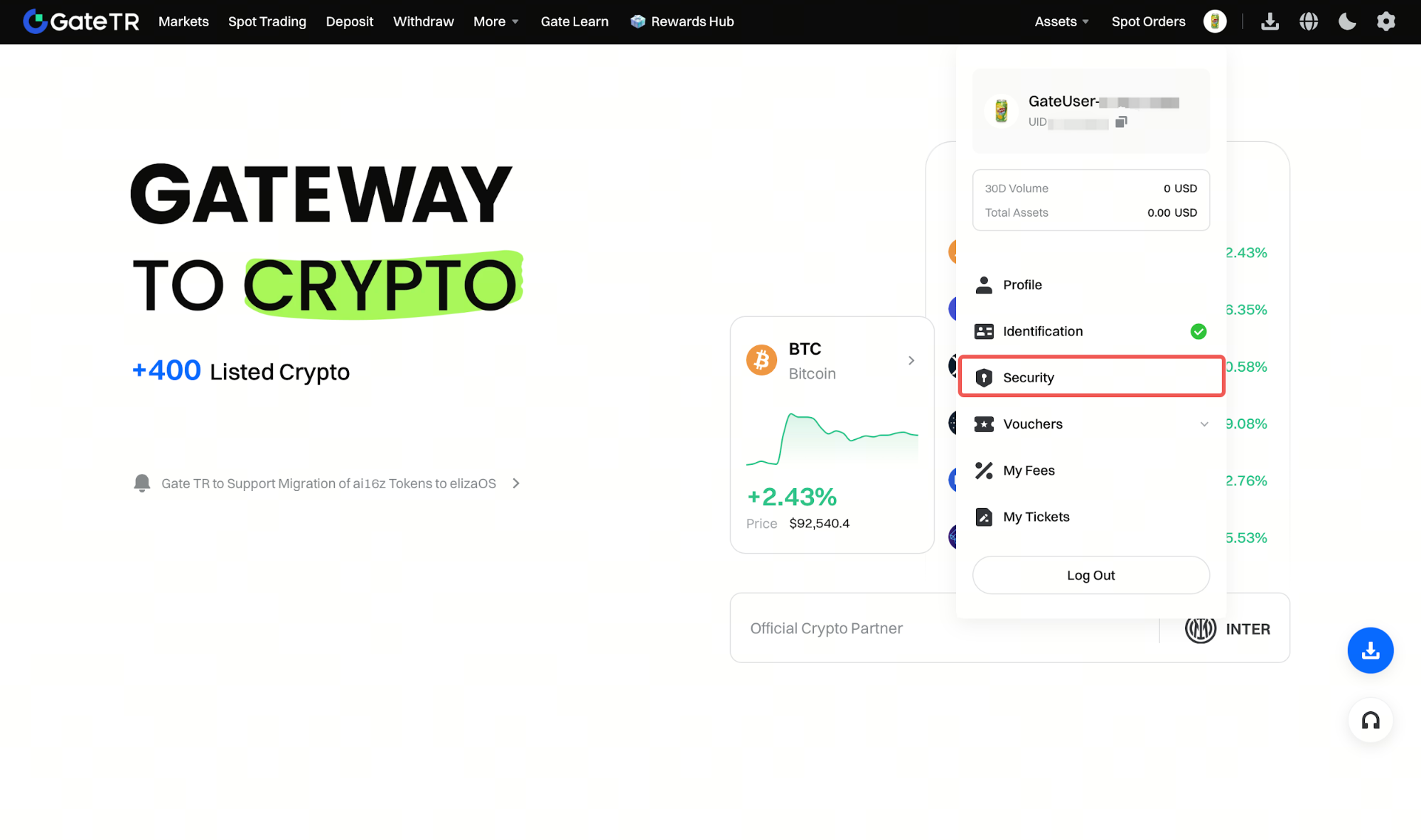
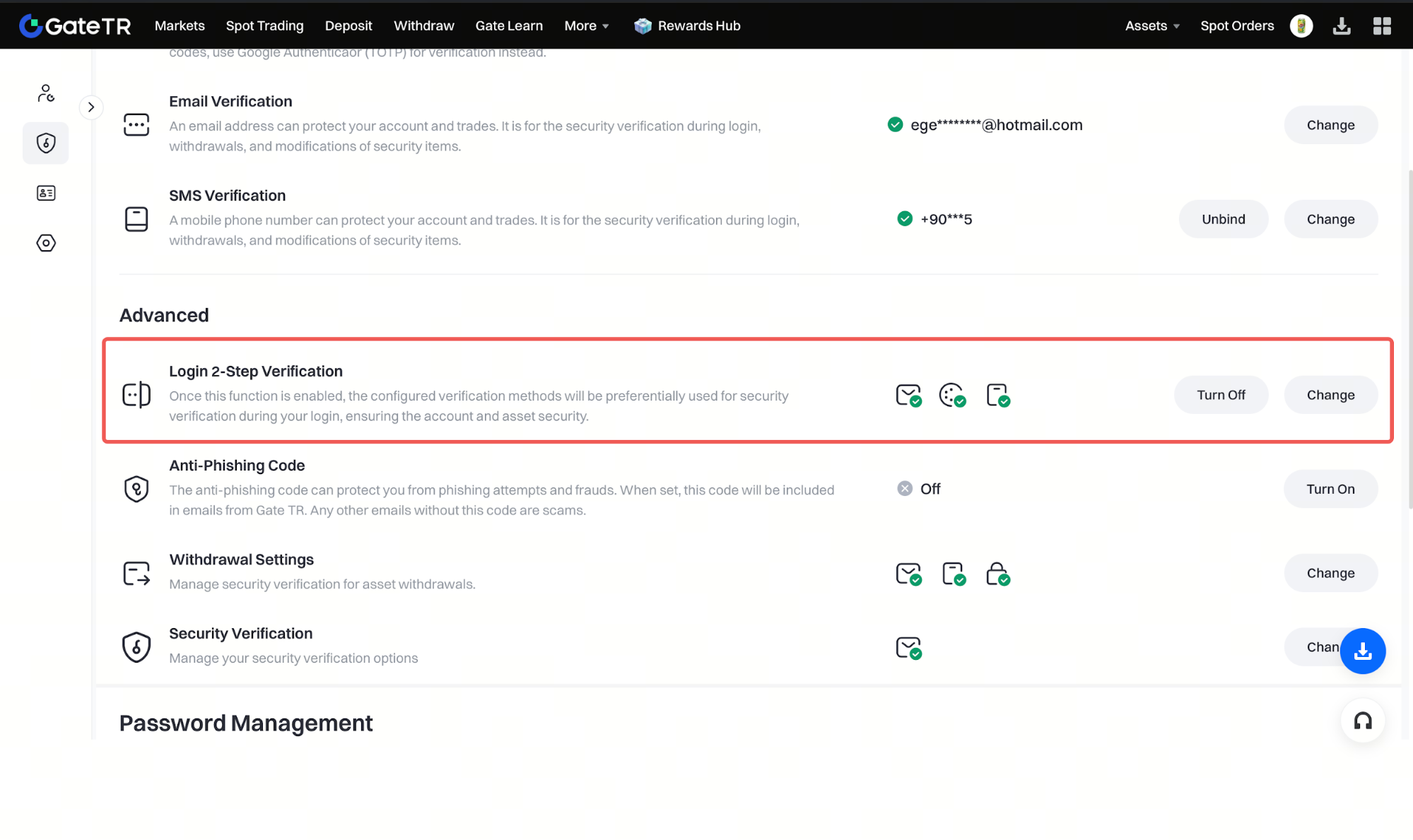
Log in to your account. Click the profile icon at the top right, then follow these steps:
Securit > Advanced > Login 2-Step Verification > Enable
How to Enable 2FA on the Gate TR Mobile App?
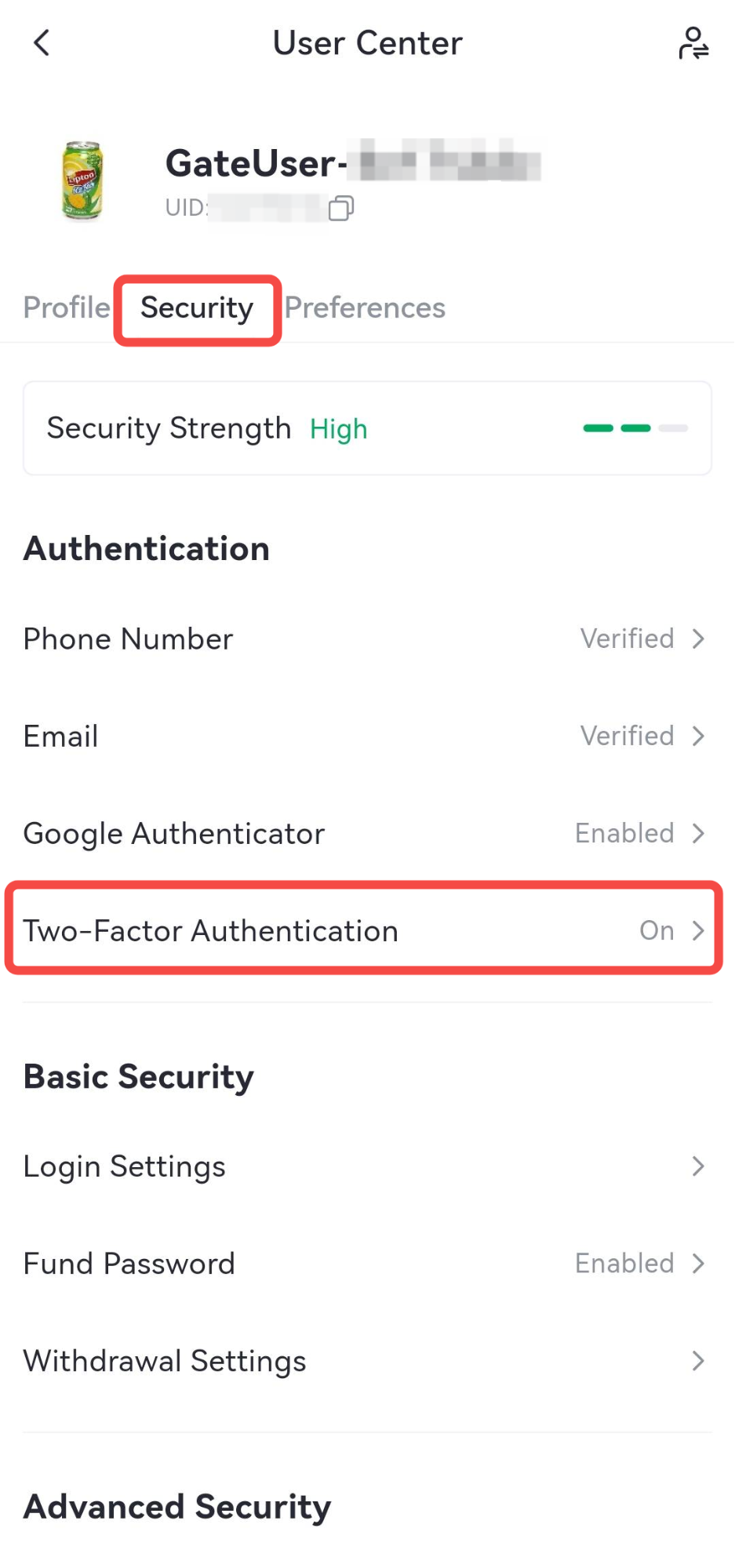
Open the Gate TR mobile app and log in. Tap the profile icon at the top left and follow this path:
Security > Two-Factor Authentication > Enable
How to Set Up Google Authenticator
Google Authenticator provides extra protection for logging into your account. Follow the steps below for a quick setup:
Download Google Authenticator:
From the App Store (iOS) or Google Play Store (Android), search for and install “Google Authenticator”.
Log into Your Account:
Go to the Security Settings section in your Gate TR account.
Enable Google Authenticator:
In the menu: Security Settings > Advanced > Google Authenticator > Enable
Scan the QR Code or Enter the Key Manually:
In the app, tap the “+” icon to scan the QR code or enter the provided key manually.
Enter the Verification Code:
Enter the 6-digit code generated by the app to complete the setup.
Once set up, the app will generate a new 6-digit code every 30 seconds, which you will need for future logins.
Lost Your Phone or Can’t Access Google Authenticator?
If you’ve lost access to your phone or authenticator app, follow these steps to reset it:
-
Your Gate TR User ID (UID)
-
Registered email address
-
Full name
-
Registered city
-
Names of some of the cryptocurrencies in your wallet
Hold your ID card clearly in one hand. In the other hand, hold a handwritten note that includes: -
The date
-
A brief description of your issue
-
Your registered phone number
Then take a photo where both the ID and the note are visible and attach it to your email.
Example Note Text:
Hello,
Today is April 14, 2025. I no longer have access to the Google Authenticator linked to my Gate TR account. I am requesting a reset of Google Authenticator.
UID:
Phone Number:
If any extra info is needed, our support team will contact you.
