

You can link your email address to your Gate TR account via both the web and mobile app versions. Below are the steps for linking your email on both platforms.
Linking Email via Website
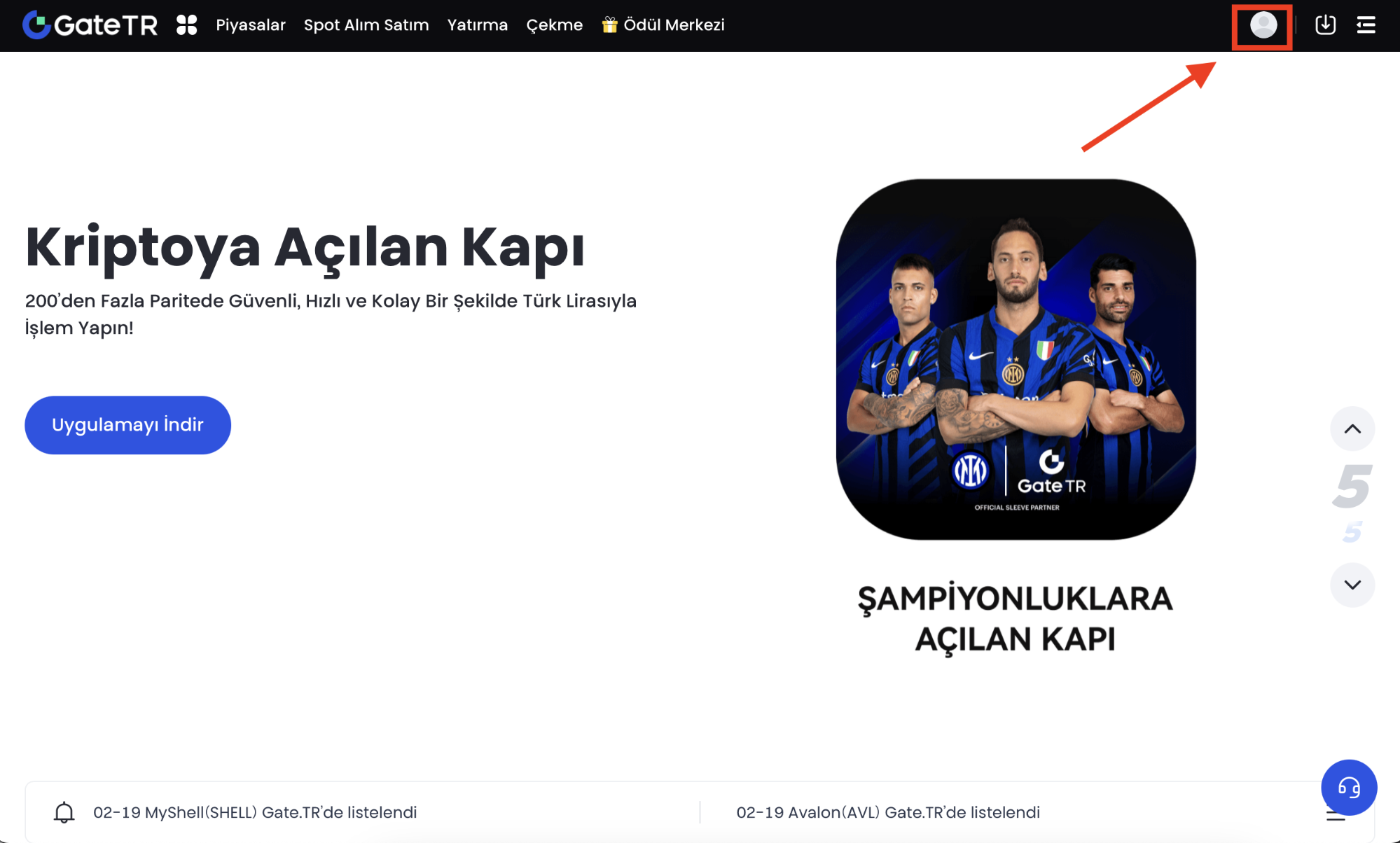
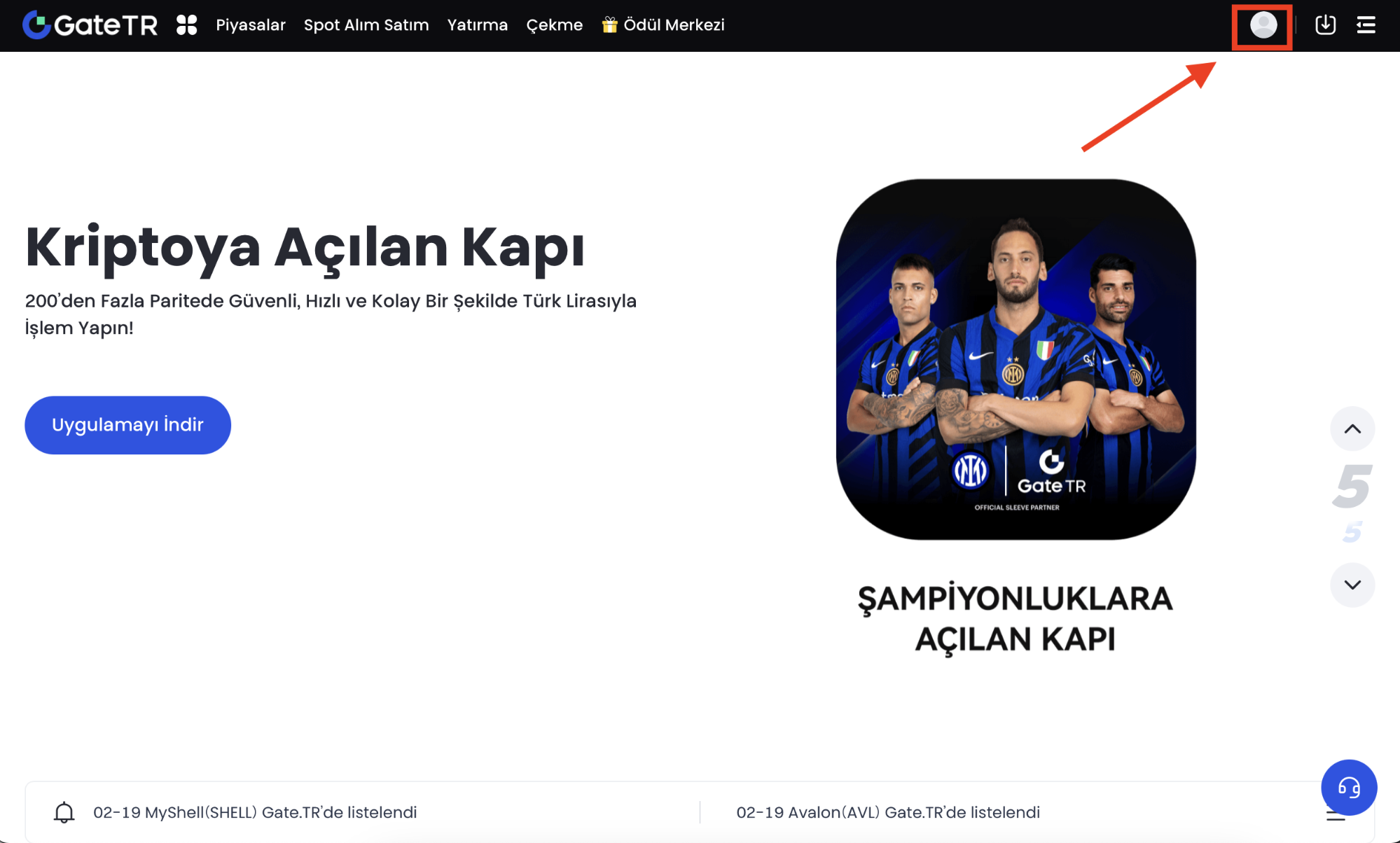
Step 1: Log in to your account. Click on the profile icon in the top right corner.
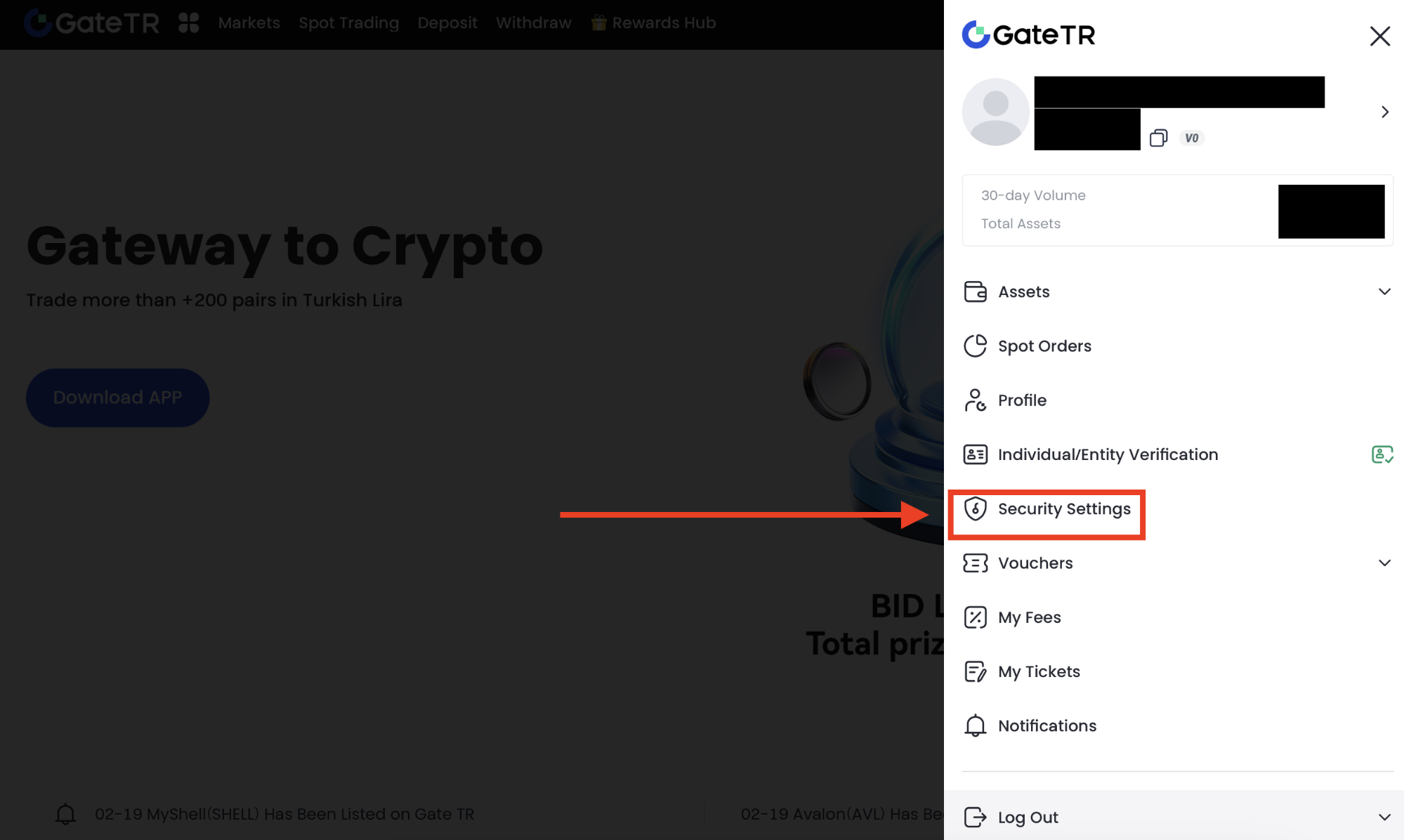
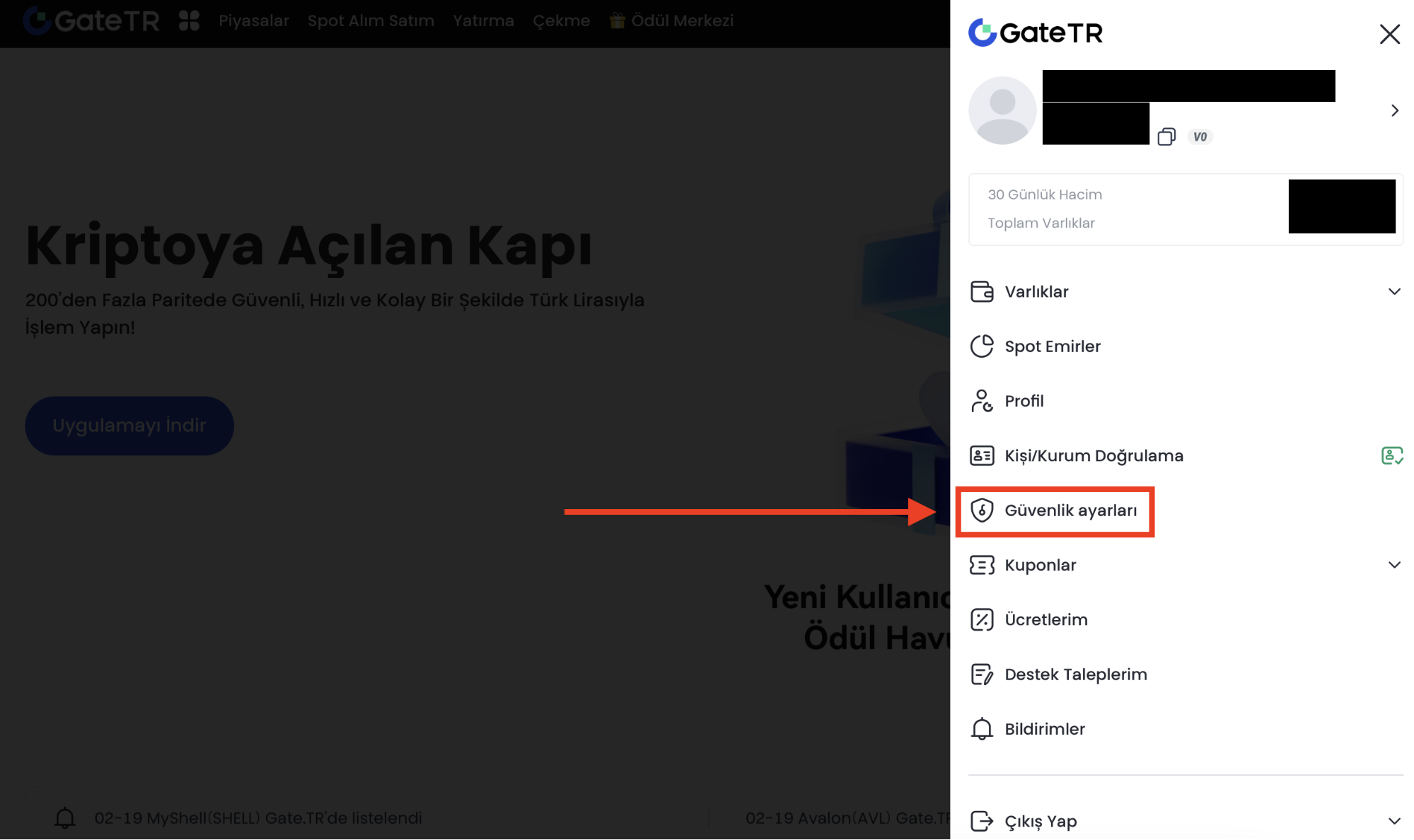
Step 2: Click on “Security Settings”.
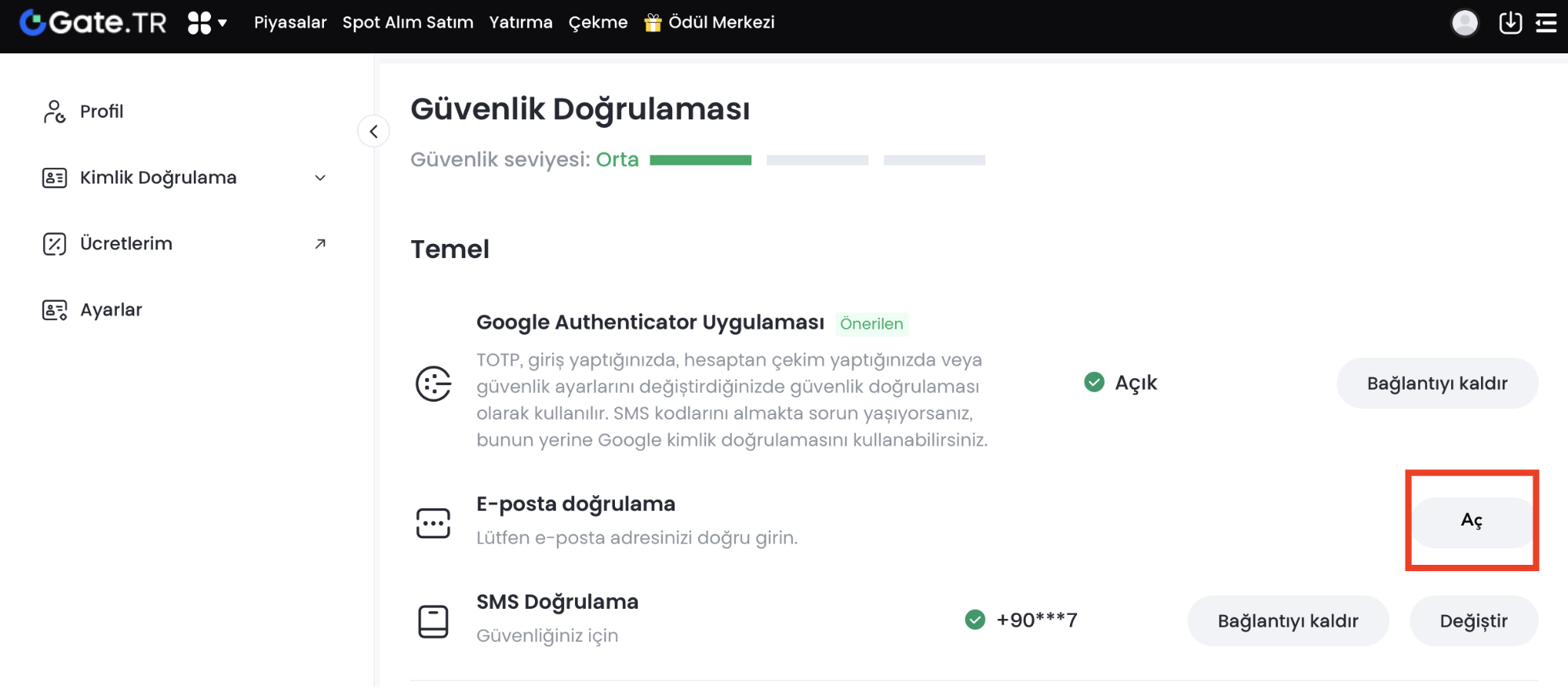
Step 3: Click the “Enable” button in the Email Verification section and fill in the requested details.
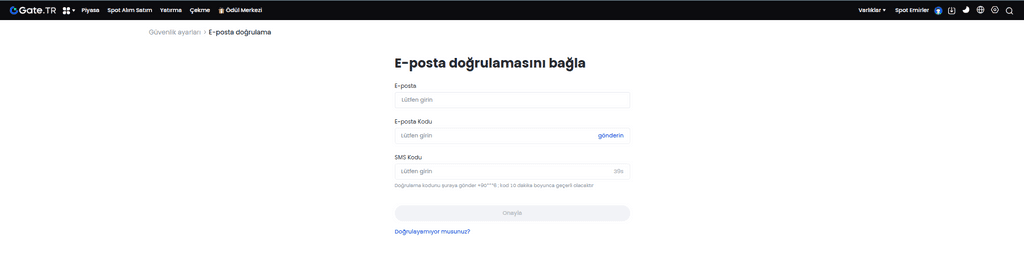
Step 4: Enter your email address, the verification code sent to your email, and your fund password. Then click “Set Email”.
Your process is complete, and you can now continue using Gate TR securely.
Linking Email via Mobile App
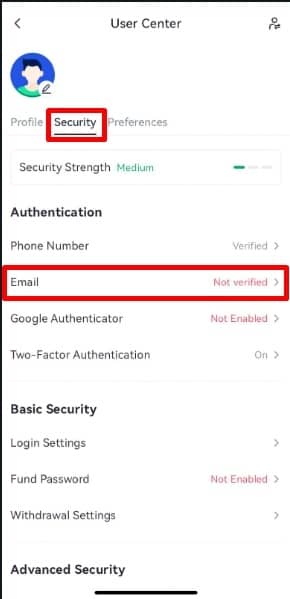
Step 1: Open the Gate TR mobile app and log in to your account. Tap the profile icon in the top left corner and then navigate to: Security > Email > Not Verified.
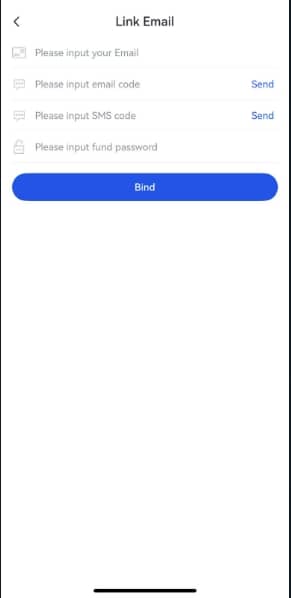
Step 2: Enter all required information (email address, email verification code, SMS verification code, and fund password). Once all fields are correctly filled, confirm that you want to link this email address to your account.
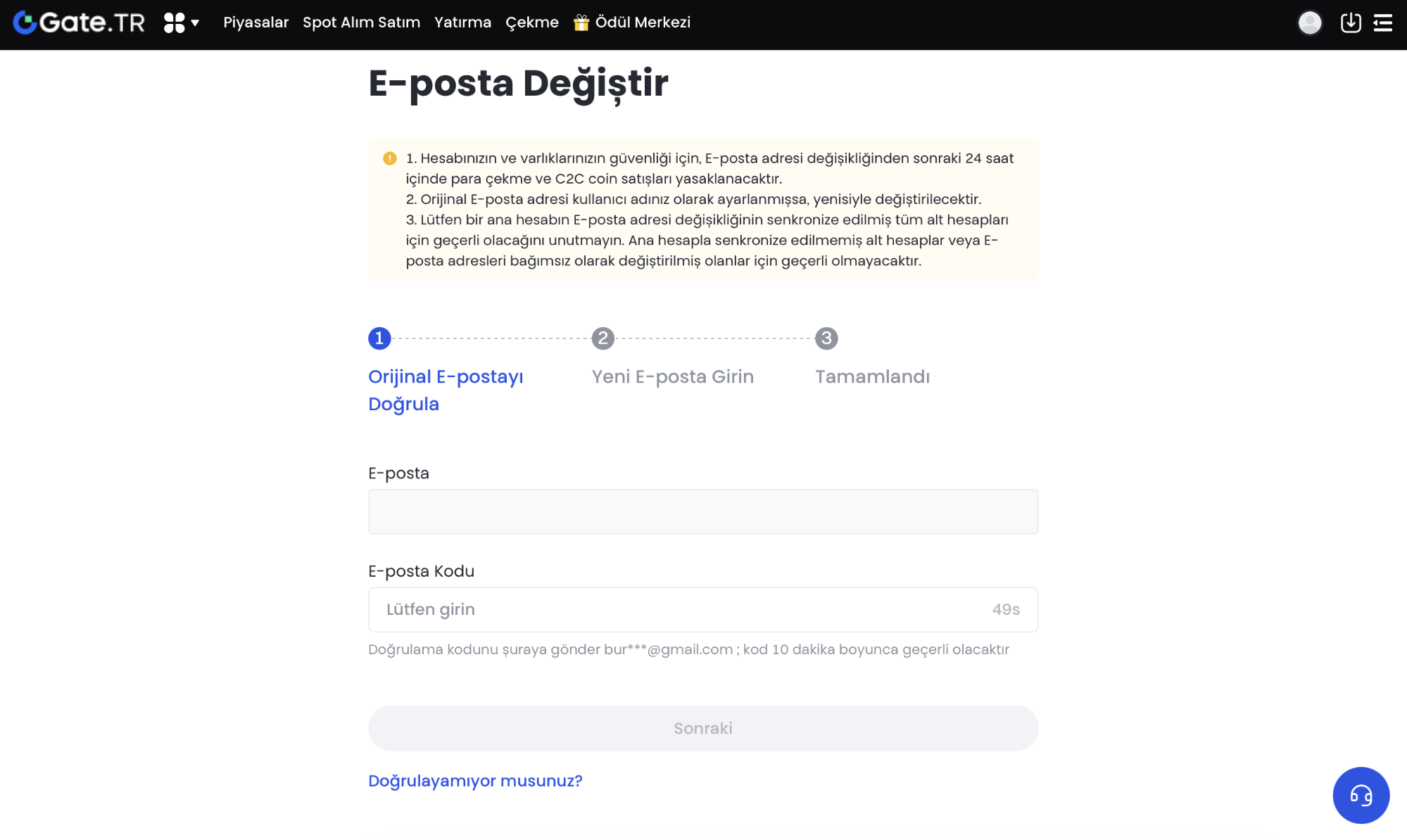
How to Change Your Email Address?
If you have access to your registered email address, you can follow the steps below to change it.
Step 1: Log in to your account. Click on the profile icon in the top right corner.
Step 2: Click on “Security Settings”.
Step 3: Click on “Change”. Once you complete the steps, your email address will be changed.
Note: After critical changes like this, your account will be restricted for 24 hours for security reasons.
If You No Longer Have Access to Your Email
If you can’t use the email linked to your account and can’t receive verification codes, you can request to remove the email link by submitting a support ticket via the Gate TR website or by sending an email to destek@gate.com.tr with the following information and documents:
Required Information:
- Your Gate TR Username
- Your Gate TR User ID (UID)
- Your registered email address
- Your full name
- Your registered city
- The names of the currencies you traded
Required Photo:
-
Hold your ID card in one hand (front side clearly visible).
-
Hold a handwritten note in your other hand with the following details:
-
The issue you are facing
-
Your phone number linked to the account
-
The date the note was written
Take a photo where both your ID and the note are clearly visible and attach it to the email.
Example Text:
Hello,
Today is April 14, 2025. I no longer have access to the email address linked to my Gate TR account. I am requesting to reset my email address.
UID:
Phone Number:
Our customer support team will contact you if any additional information is required.
