How to Complete Identity Verification?
Gate TR requires all users to complete the KYC (Know Your Customer) process to ensure the security of your assets, contribute to the healthy development of the cryptocurrency ecosystem, and prevent illegal activities such as fraud, money laundering, and blackmail.
Users who complete KYC verification can deposit and withdraw cryptocurrencies and trade with fiat currencies.
Follow the steps below to complete identity verification (KYC) via the mobile app.
Individual Verification (With Visual Guide)
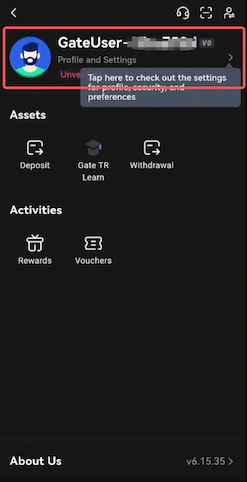
Step 1: Log in to your Gate TR account on the app and click the profile icon at the top left. Your profile will appear as “Not Verified” as shown below. Click on this area.
Step 2: On the next screen, click the “KYC (Identity Verification)” option.

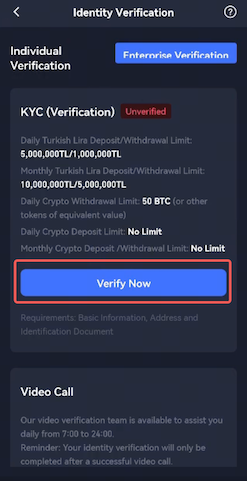
Step 3: On the Individual Verification page, click the “Verify Now” button.
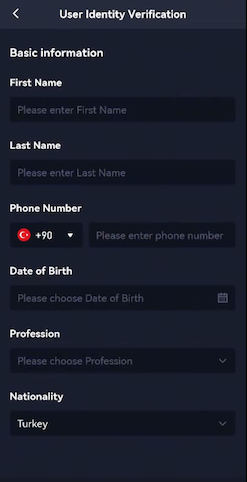
Step 4: Follow the on-screen instructions and provide the required information such as Name, Citizenship, Phone Number, Date of Birth, etc.
Step 5: Continue filling in the details like Country of Residence, City, District, Neighborhood, Street Name, etc., and then click “Next” to proceed.

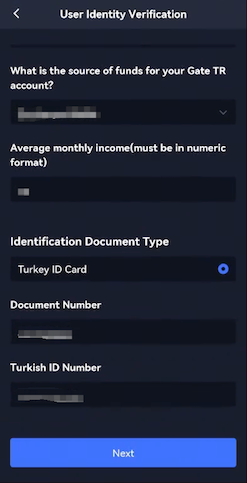
Step 6: After clicking Next, a verification code will be sent to the phone number you entered. Enter the verification code sent to you and click Confirm.

Step 7: On the page that opens, click Next to proceed to the live verification, identity scan and address confirmation stage.
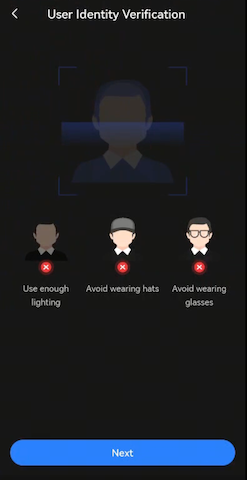
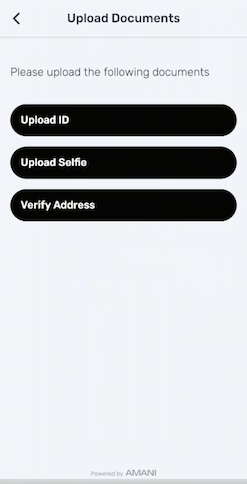
Adım 8: Complete the requirements for the verification of identity, address and proof of residence.
- Front and back of ID card scanning
- Selfie
- Upload Residence Certificate
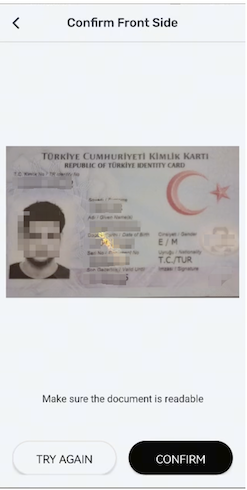
- The front of the ID card should be as shown in the example.
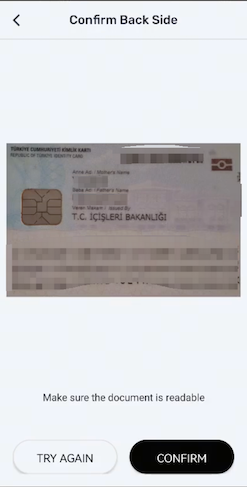
- The back of the identity card should be as shown in the example.
- Please upload your selfie clearly and in accordance with the instructions.
- Follow the instructions on the screen and upload your Residence Certificate. The residence details on the certificate must match the information you have entered.
The steps you need to follow to create a Residence Certificate are as follows:
To create a Residence Certificate via E-Government, log in to E-Government and locate the Residence (Place of Residence) and Other Address Certificate Inquiry service provided by the General Directorate of Population and Citizenship Affairs.

On the screen that opens, select the ‘Submit to Institution’ option and enter ‘Gate TR’ in the Institution Name field. Then, click the query button to generate your Place of Residence (Residence) document.

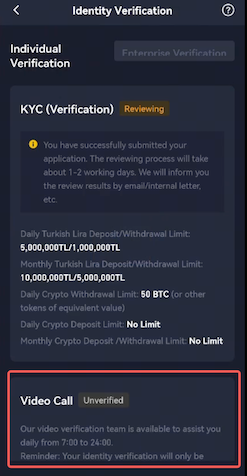
Step 9: After completing all the steps correctly, click the Confirm button on the confirmation page that opens. Once the review is complete, you can proceed to the video call stage.
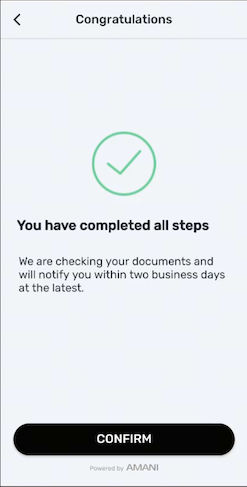
Step 10: Once the review is complete, Video Call Verification will be activated. After Video Call is activated, enter Video Call, complete the necessary instructions, and activate your account by making a small deposit. This will complete your Identity Verification process.